

Comments and Suggestions
Basic Memory keeps review feedback with the note, so people and connected AI assistants can discuss a passage or propose a change without overwriting the original text.
Under the rich editor, comments and suggestions use portable CriticMarkup. You can review the same note in the Cloud web app or the Pocketbook inside a compatible AI conversation.
Start from a text selection
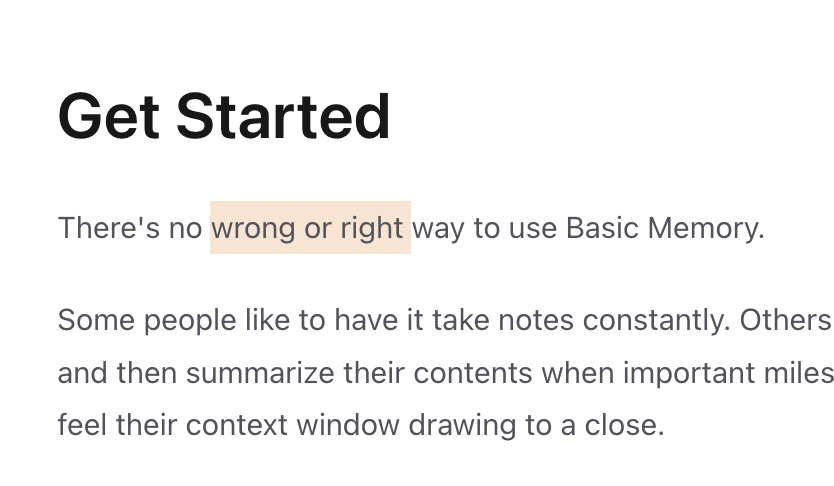
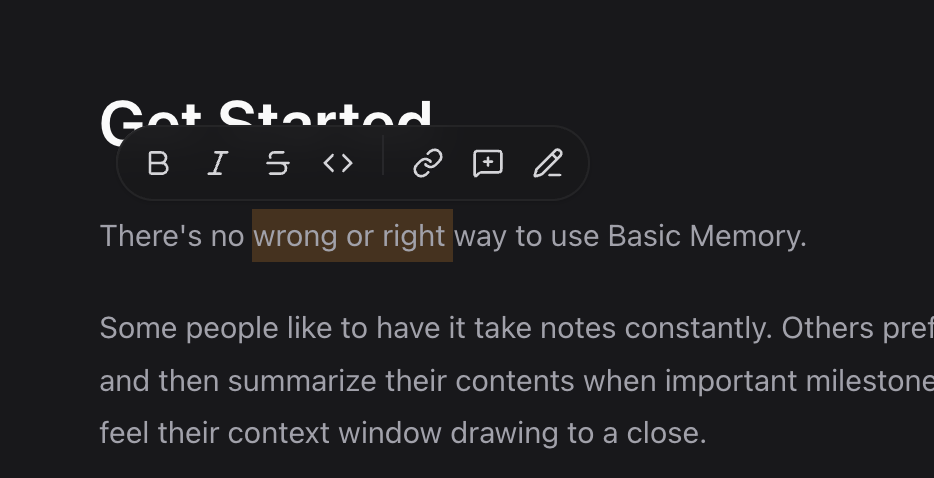
Open the note in Rich editor mode, then select the passage you want to review. The selection toolbar keeps the usual formatting actions—bold, italic, strikethrough, inline code, and link—and adds two review actions:
- Add comment opens a discussion without changing the selected text.
- Suggest edit proposes a change that can be accepted or rejected later.
Add a comment
- Select the text you want to discuss.
- Choose Add comment from the selection toolbar.
- Write the comment and press Enter. Use Shift + Enter for a new line.
The review rail keeps unresolved threads beside their highlighted text. Open a thread to reply, resolve it, or delete it. Resolving a comment removes its inline review markers while leaving the original passage unchanged.
Suggest an edit
Select text, choose Suggest edit, and then choose the kind of change:
| Action | Result |
|---|---|
| Suggest insertion | Propose text to add after the selection |
| Suggest deletion | Mark the selected text for removal |
| Suggest replacement | Propose new text in place of the selection |
Open a suggestion from the review rail to Accept or Reject it. Accepting applies the proposal; rejecting restores the original document state.
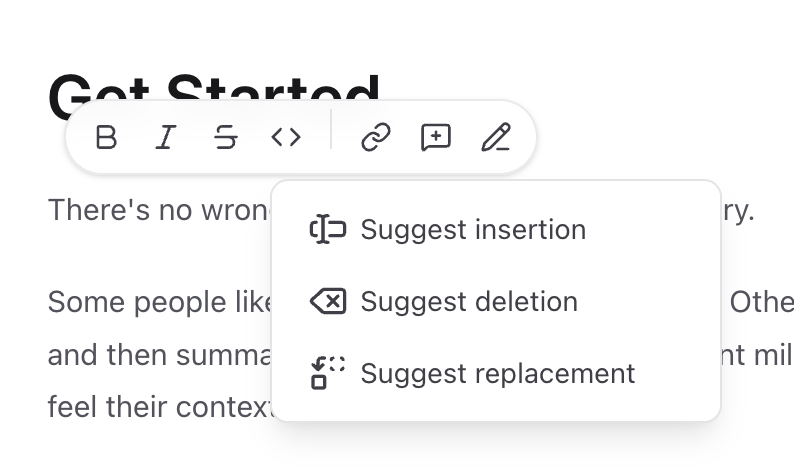
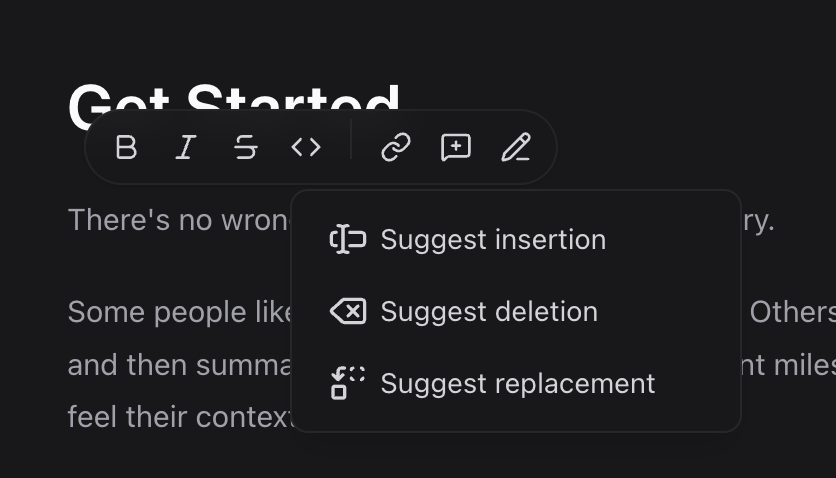
Insertion and replacement open a composer for the proposed text. Deletion can be proposed immediately because the selected passage already identifies what should be removed.
Read the proposed change inline
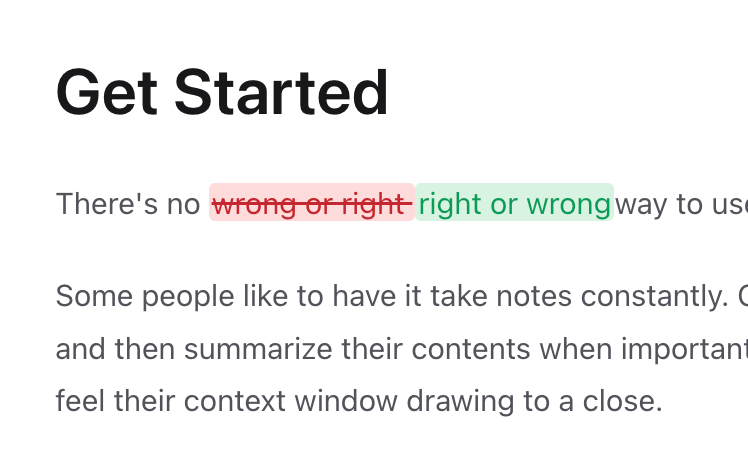
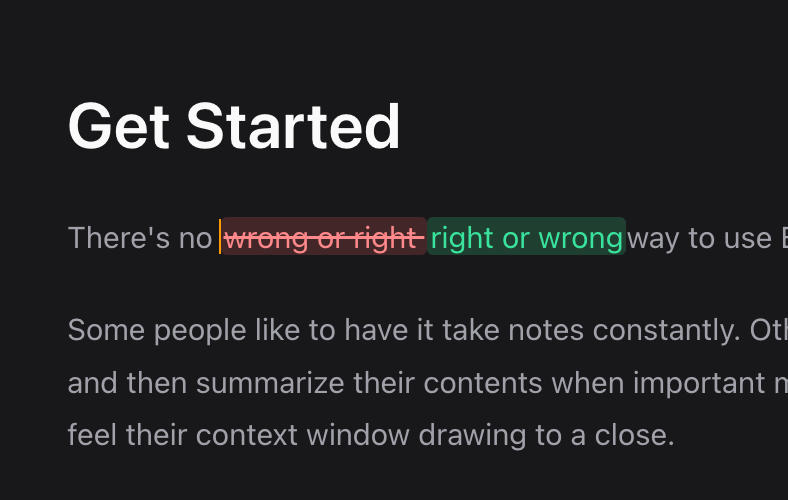
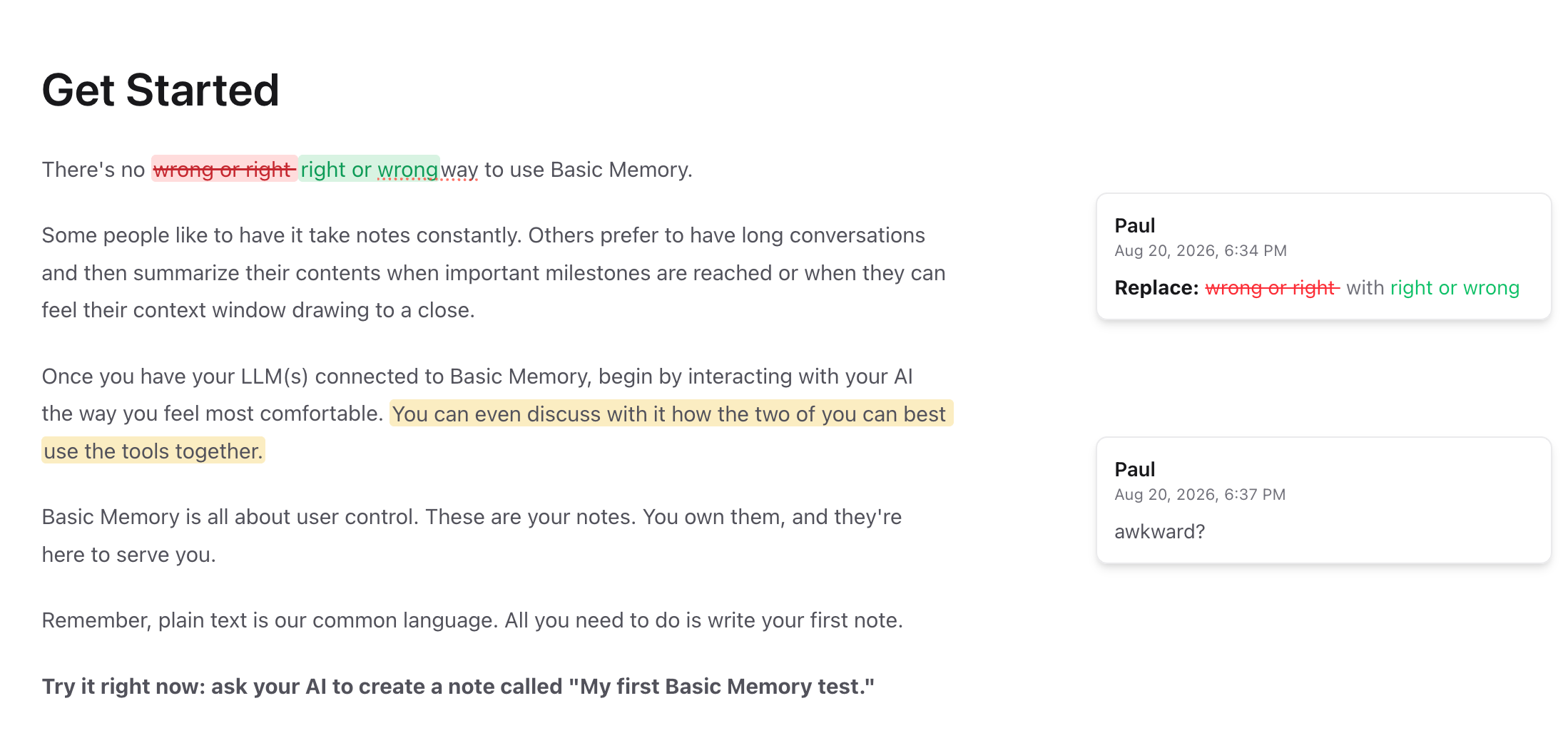
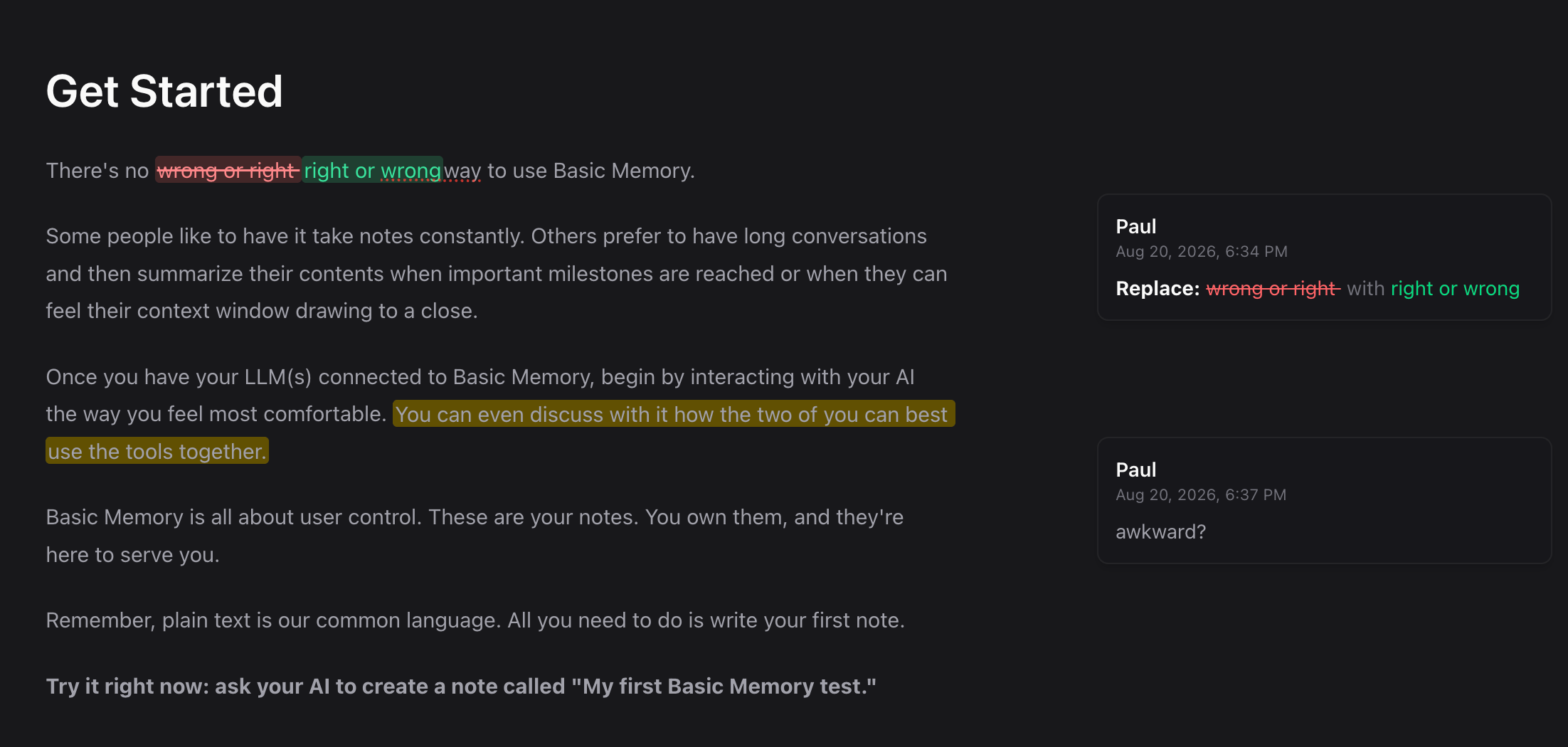
Suggestions remain visible in the document while they are unresolved. Deleted or replaced text appears in red with a strikethrough; inserted or replacement text appears in green. This makes the original and proposed versions readable together.
Open the suggestion thread
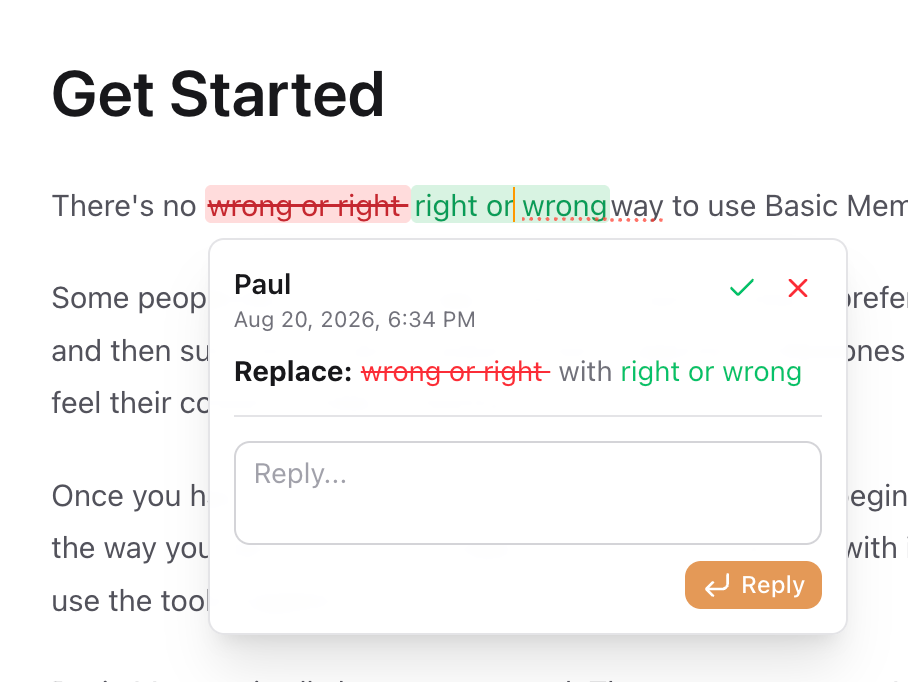
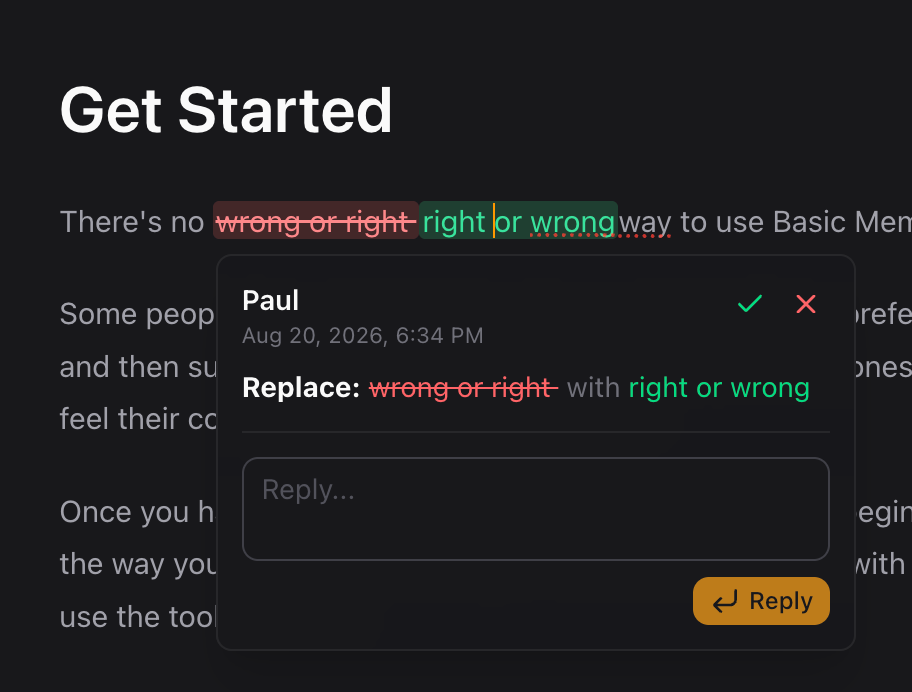
Select the highlighted suggestion to open its thread. The card shows who authored it, when it was created, and a plain-language summary of the change. From there you can:
- Select the green check to accept the suggestion.
- Select the red X to reject it.
- Reply to discuss the proposal before deciding. Press Enter to send or Shift + Enter for a new line.
Follow unresolved review items
When a note has open review work, the message icon in the note toolbar shows the number of unresolved comments and suggestions. Select it from Preview mode to open the note in the review editor.


The review rail keeps every unresolved item beside its highlighted passage. Suggestions use red and green change highlighting; comments use an amber highlight. Compact cards show the author, time, and a summary, and selecting a card expands its available actions and replies.
Review with an AI assistant
Cloud-connected assistants use the review_note MCP tool to create and manage the same attributed threads you see in the editor. Ask one to:
Review this note with comments and suggestions. Keep the original prose in place so I can accept each change individually.
The supported workflow is:
- Call
read_notewithreview_mode="structured"(the Cloud default) to get clean note prose, typed review items, and arevision_checksum. - Call
review_note(command="comment")orreview_note(command="suggest")with an exact, single-line prose anchor copied from that read. - Use the returned review IDs to
replyorresolvea comment, or toacceptorrejecta suggestion. - Pass the latest checksum when accepting or rejecting. If the note changed, read it again instead of applying a decision to stale text.
For example:
review_note(
  identifier="Launch plan",
  command="suggest",
  anchor={"exact": "Ship the beta on Friday."},
  suggestion_kind="replacement",
  replacement="Ship the beta after the security review."
)
Anchors can include exact prefix or suffix context, or a one-based occurrence, when the same sentence appears more than once. New threads are attributed to the detected MCP client.
review_note; reserve read_note(review_mode="raw") for inspecting exact persisted Markdown.The common CriticMarkup forms are:
{==text under review==}{>>Comment<<}
{++proposed addition++}
{--proposed deletion--}
{~~original text~>replacement text~~}
Basic Memory adds stable IDs and attributed review records when it creates a thread. Let the editor and review_note manage that metadata rather than changing it by hand. The metadata stays out of the editor body and is removed from public shared-note output.
Edit prose while review work is open
Cloud's normal edit_note tool preserves active review records. When a note contains review work, first read it in structured mode and pass that read's revision_checksum as expected_checksum. An edit that intersects reviewed prose is rejected with the blocking review ID; resolve the comment or accept/reject the suggestion before changing that passage. write_note(overwrite=true) remains an intentional full replacement and can remove review state.
Search results also hide CriticMarkup storage bytes. JSON results include review_summary counts so an assistant can see that a matching note still needs review without loading every thread.
Review inside a conversation
The Pocketbook brings the same focused review workflow into compatible AI clients. From the embedded note reader you can:
- Add attributed comments
- Suggest insertions, deletions, and replacements
- Resolve or delete comments
- Accept or reject suggestions
- Open the note in the full Cloud web app for threaded replies