Note Editor
Notes in the web app open ready to edit, and everything you write is saved as plain Markdown.
Editing modes
The app has three modes, switchable from the toolbar or with keyboard shortcuts:
| Mode | Shortcut | Description |
|---|---|---|
| Rich editor | Cmd/Ctrl + Shift + I | WYSIWYG editing — type and format directly, with tables, code blocks, callouts, and task lists |
| Source mode | Cmd/Ctrl + Shift + R | Plain Markdown editing with full frontmatter visible — for power users |
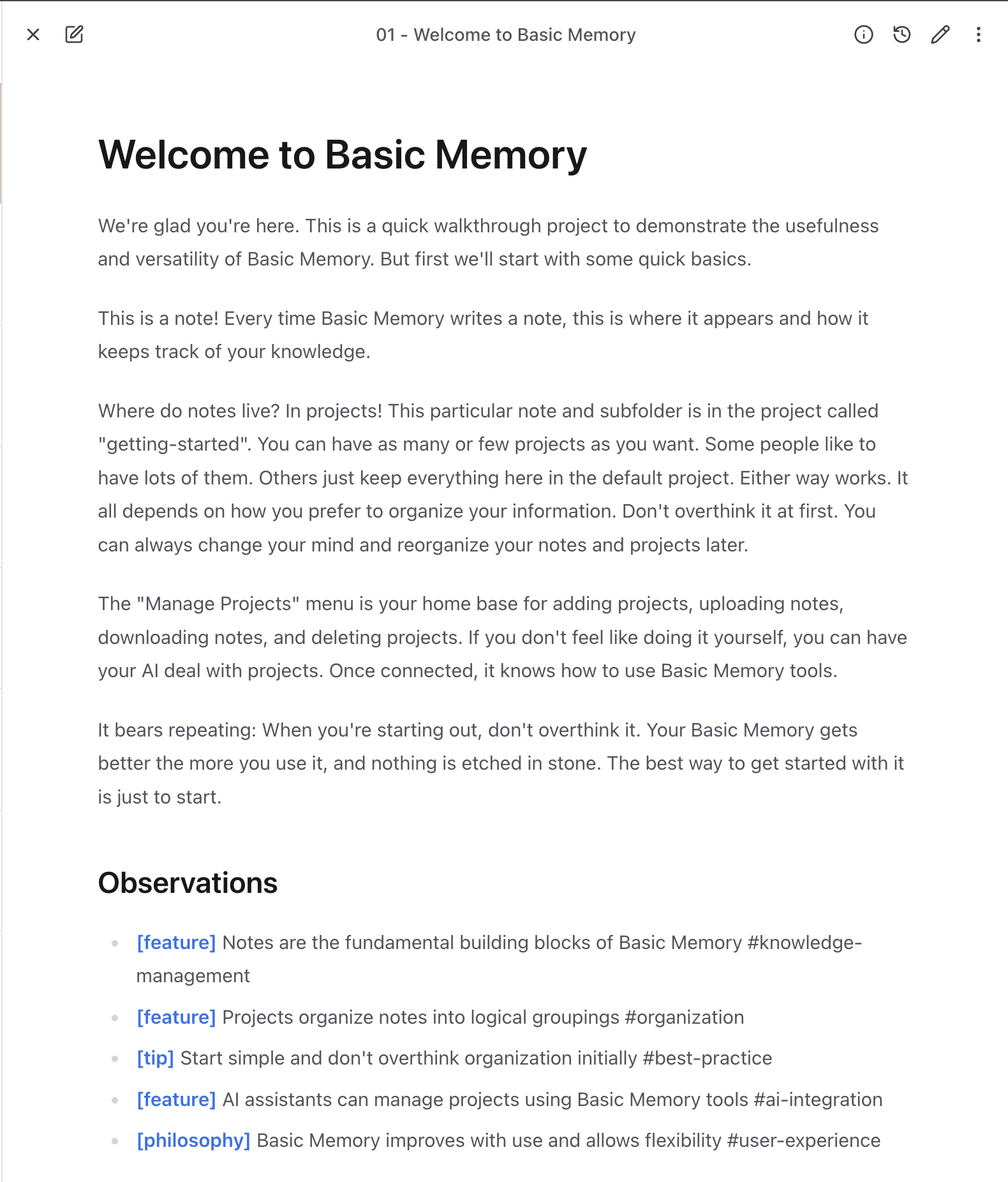
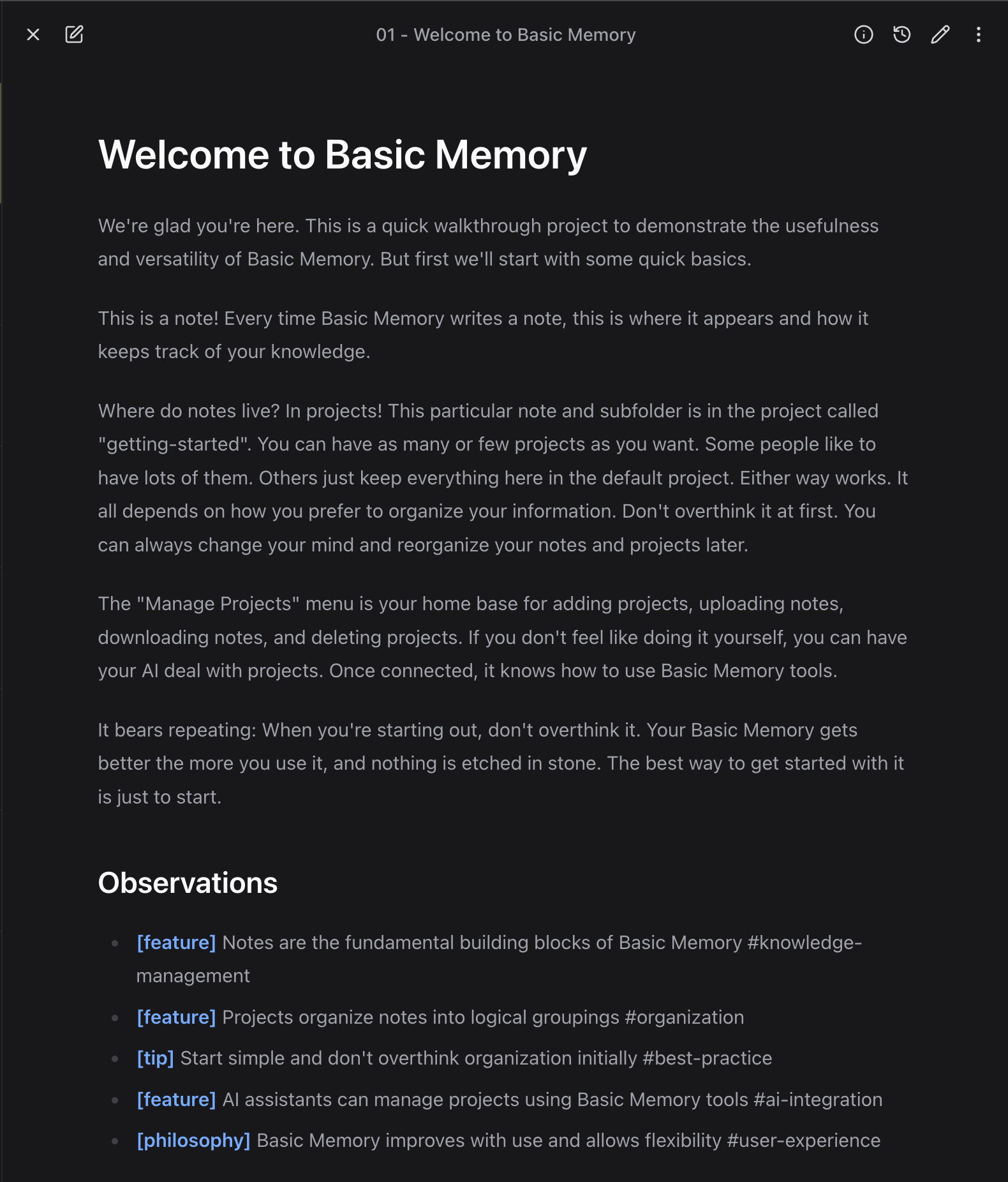
| Preview | Cmd/Ctrl + Shift + P | Read-only rendered view with clickable [[wiki links]] for navigating your knowledge graph |
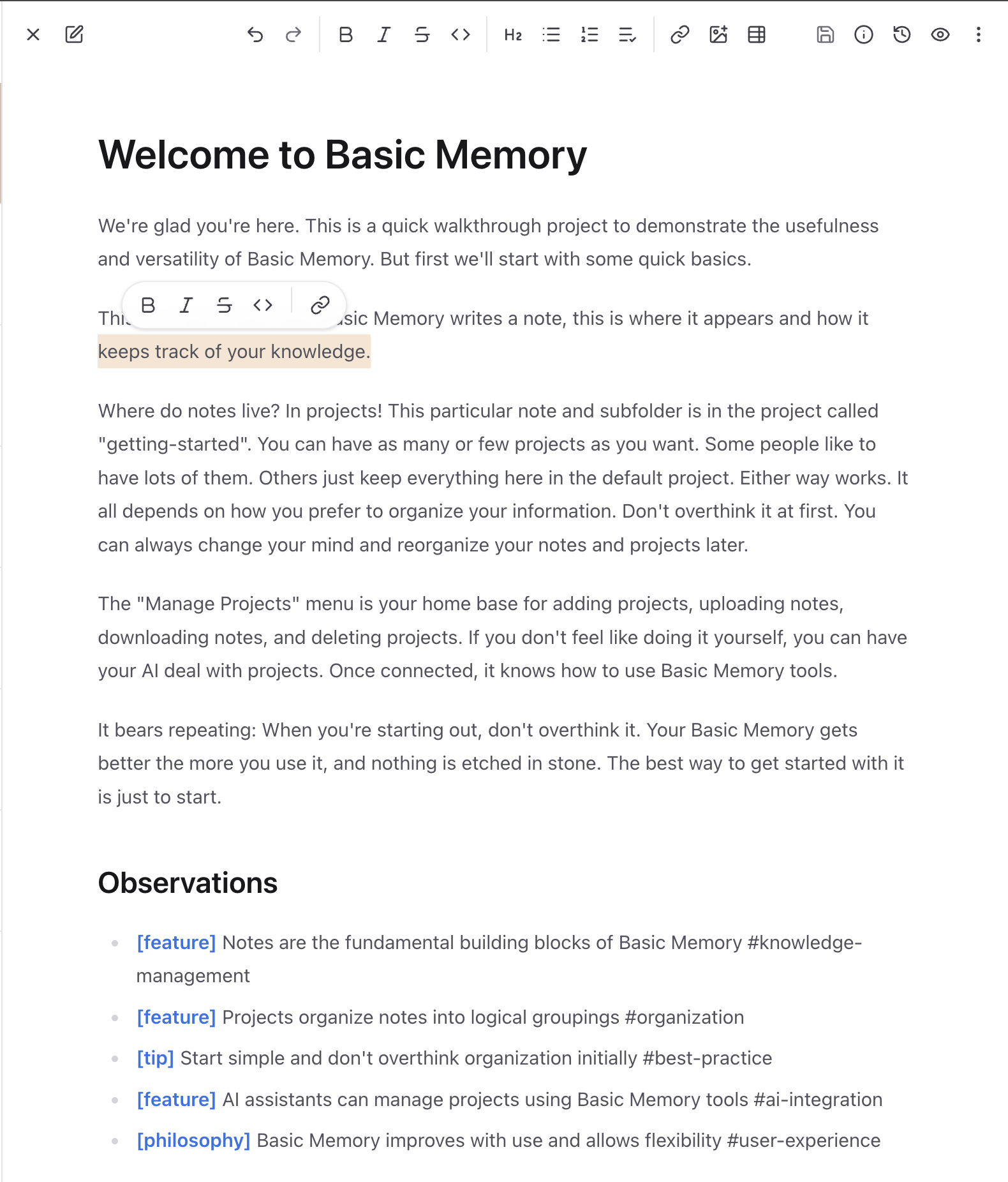
And here's the same note in Preview mode, with clickable wiki links:
Markdown formatting
The rich editor supports full Markdown including:
- Headers, bold, italic, inline code
- Code blocks with syntax highlighting
- Tables
- Links and images
- Task lists (
- [ ]and- [x]) - Basic Memory semantic syntax (observations, relations)
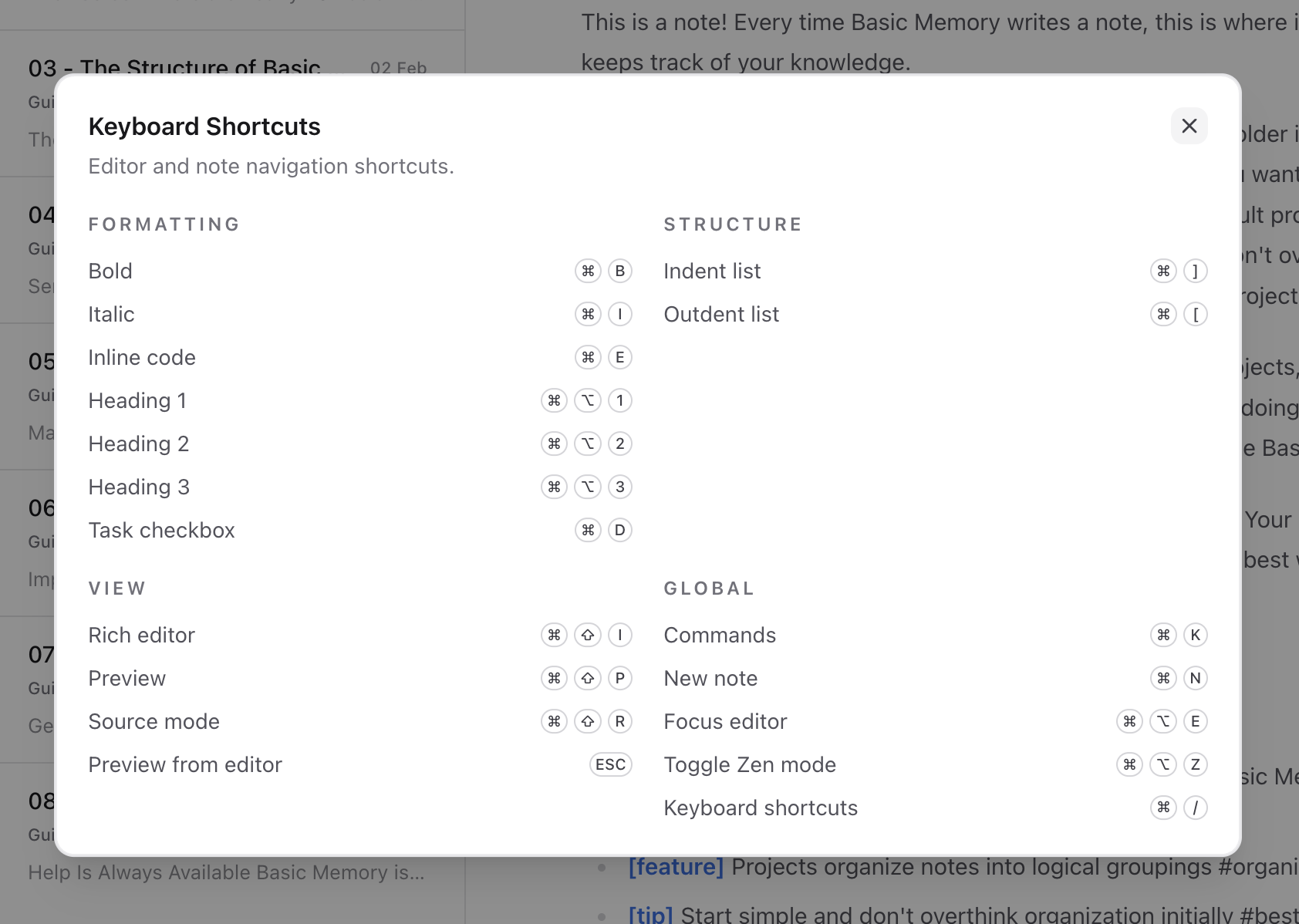
Press Cmd/Ctrl + / to see all formatting shortcuts.
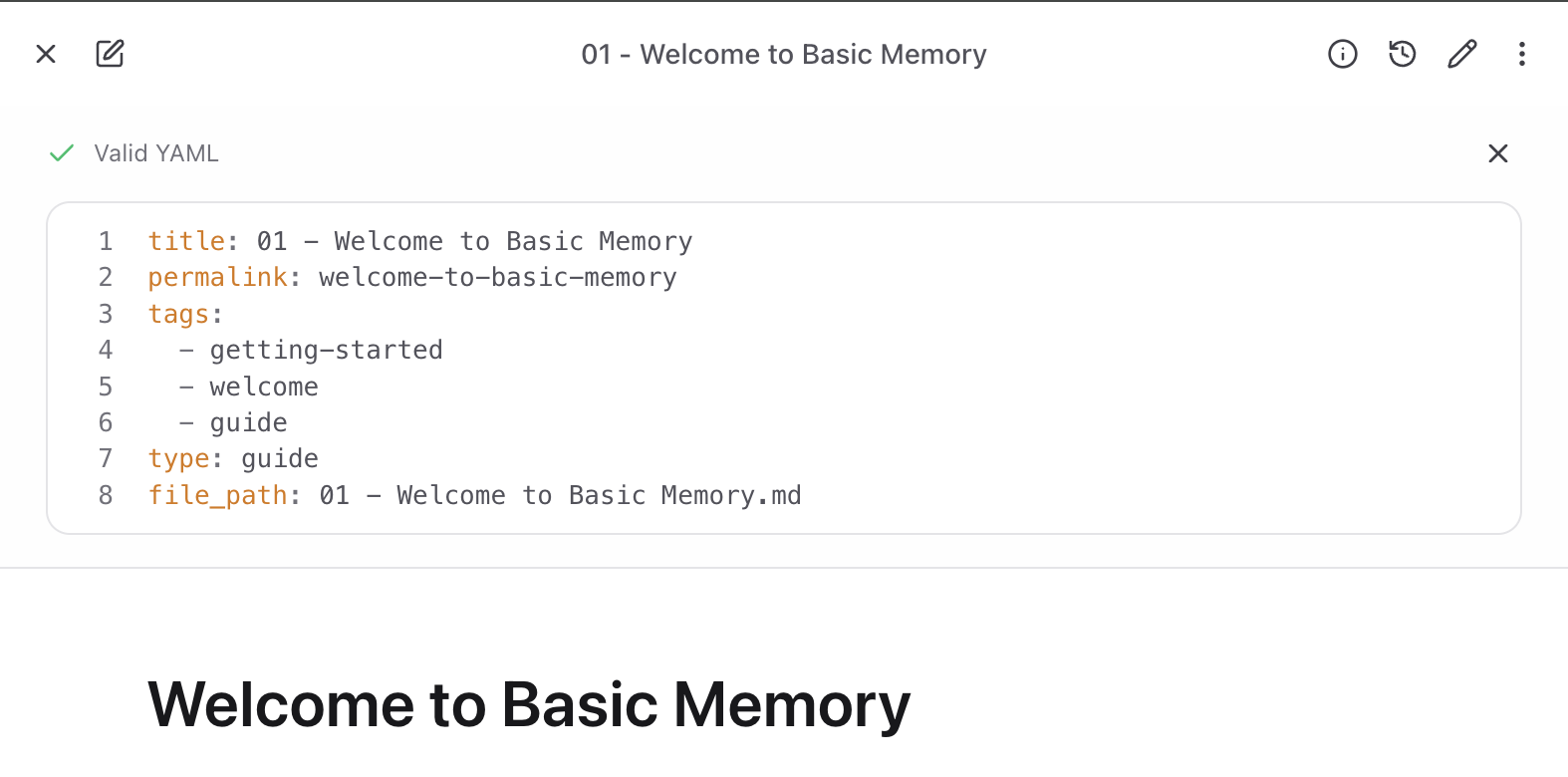
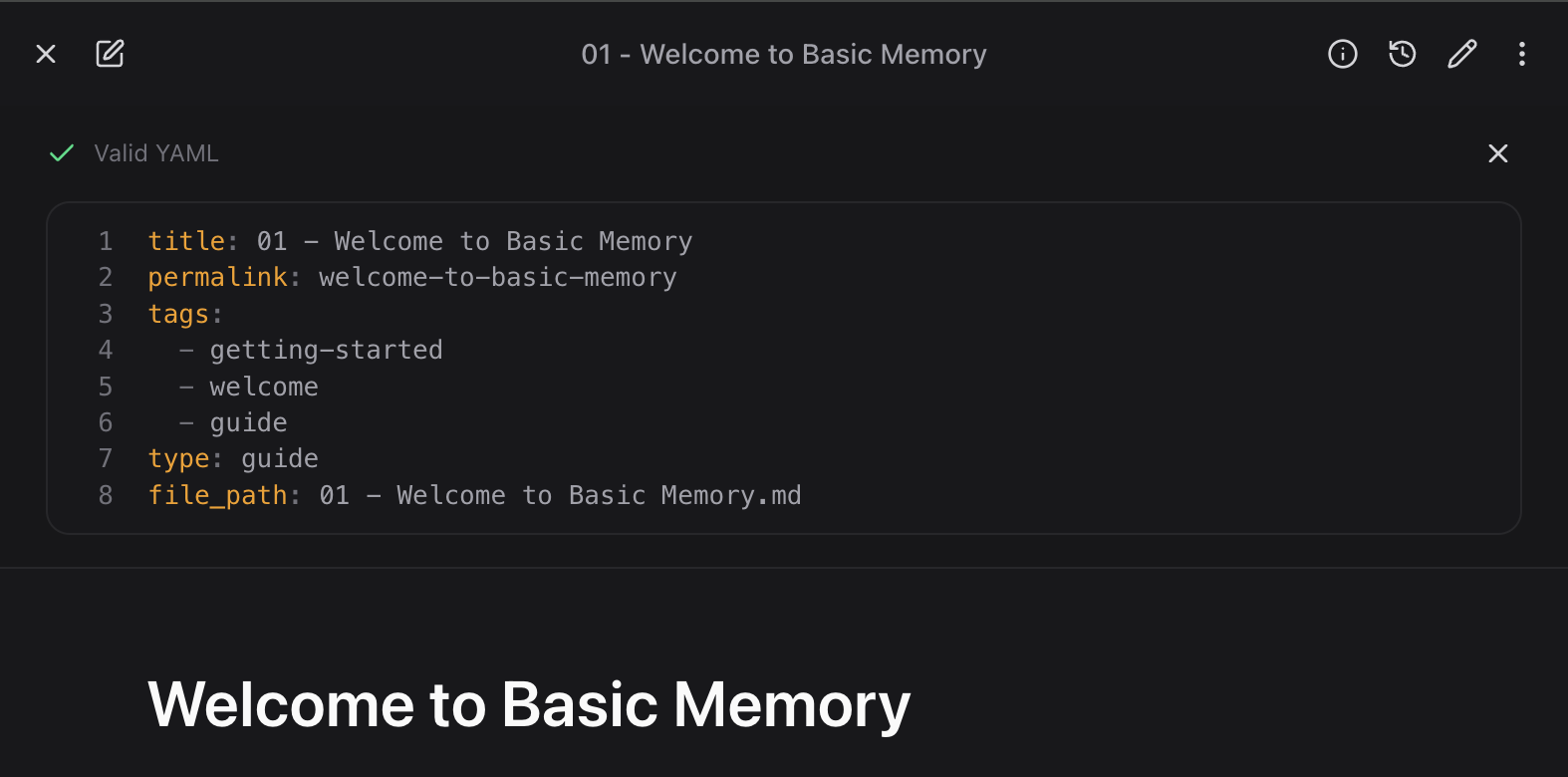
Edit frontmatter
Open the Frontmatter panel from the toolbar (or the command palette) to edit a note's YAML metadata separately from its content.
Review notes without overwriting them
Select text in the rich editor to add a comment or suggest an insertion, deletion, or replacement. Review items stay with the Markdown note so people and connected assistants can discuss and accept changes individually.
See Comments and Suggestions for the complete web app, Pocketbook, and CriticMarkup workflow.
Drafts
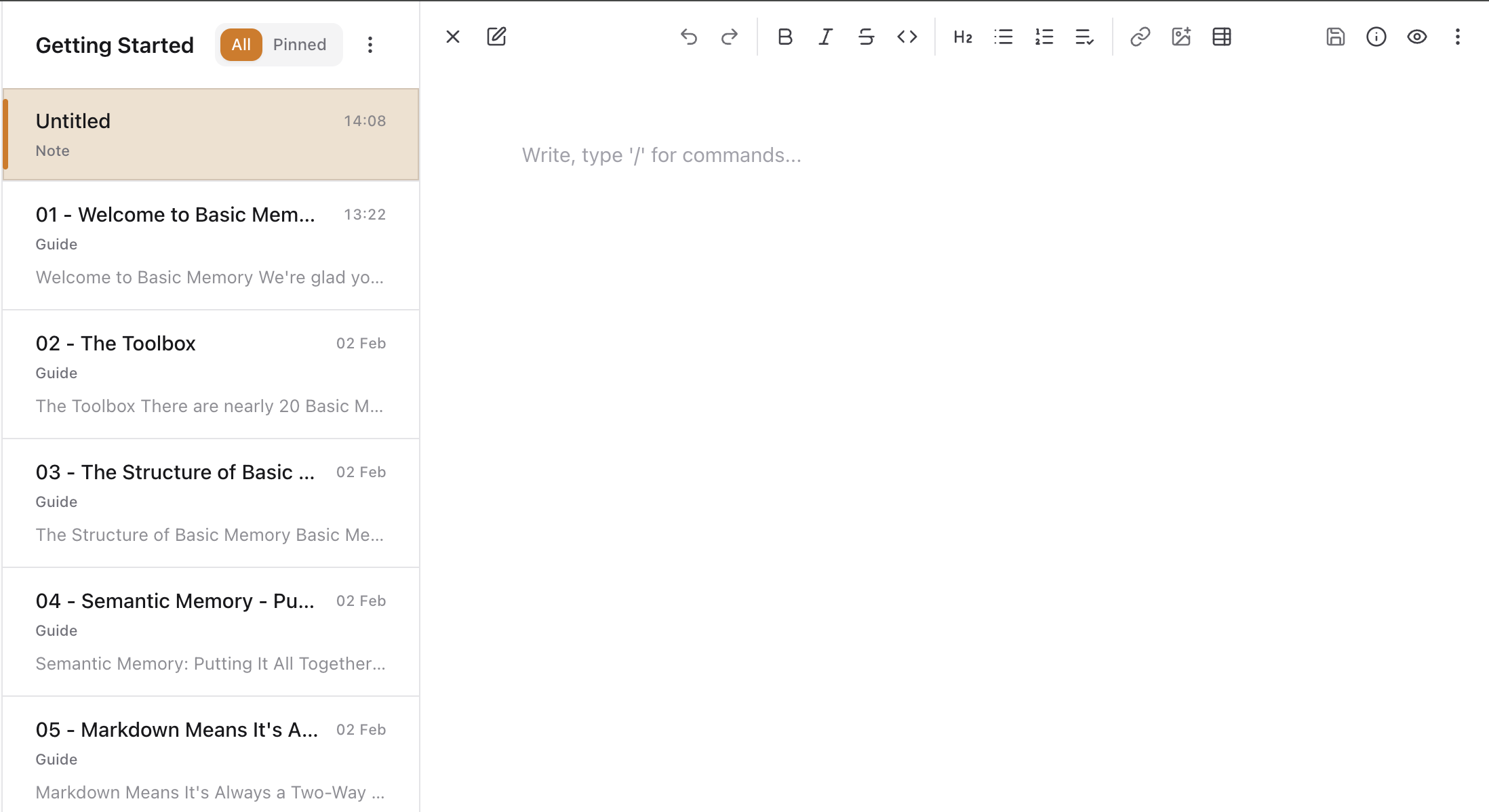
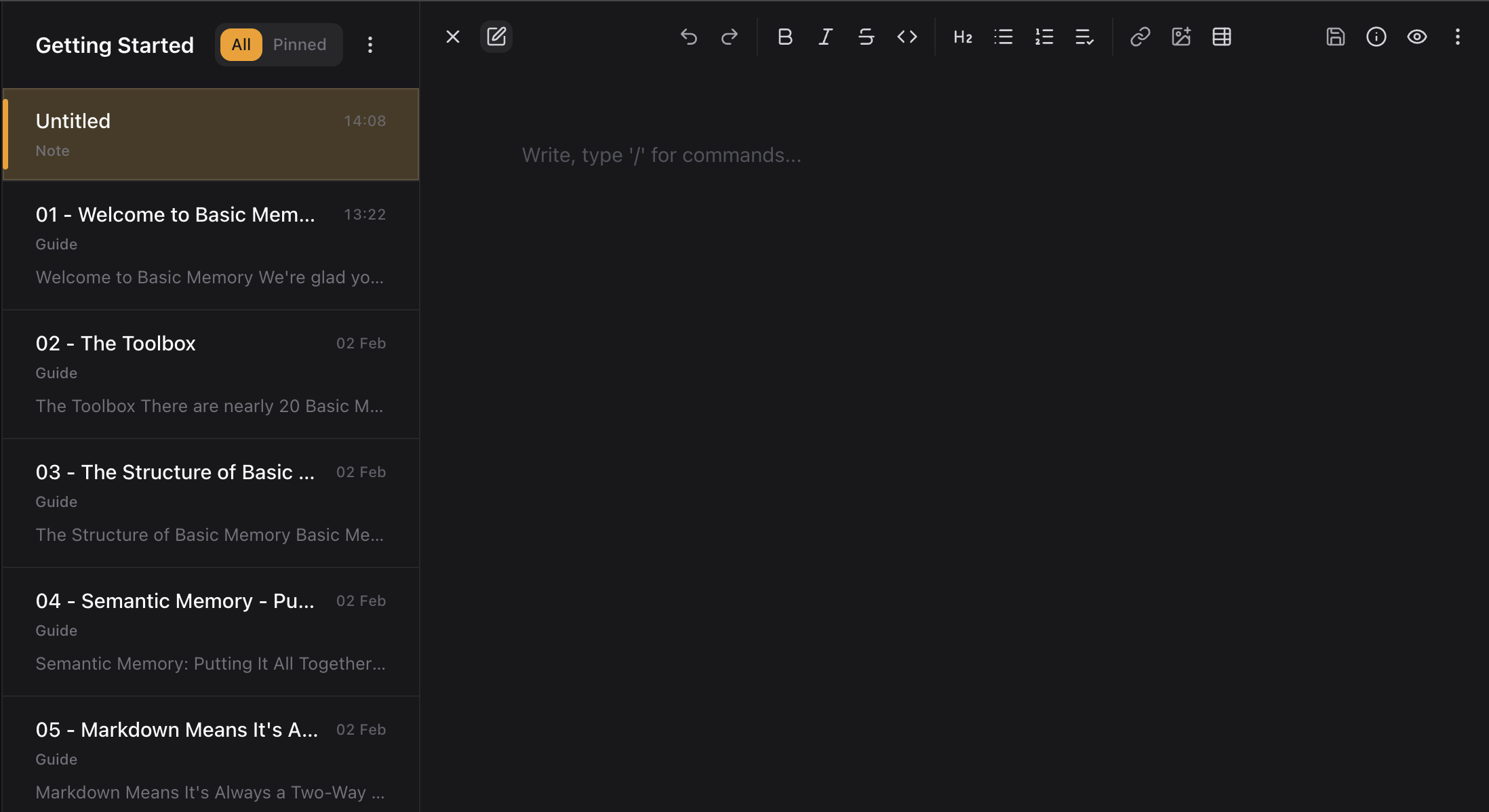
Start typing in an empty editor — or press Cmd/Ctrl + N for a new note — to create a draft.
- A new draft saves into the current project automatically once it has meaningful content (a title, tags, or body text).
- Use Save Draft in the command palette to save immediately without waiting.
- Once saved, the note syncs like any other and is available to your AI assistant.
Creating and managing notes
Create a note
- Start typing in an empty editor, or
- Press Cmd/Ctrl + N, or
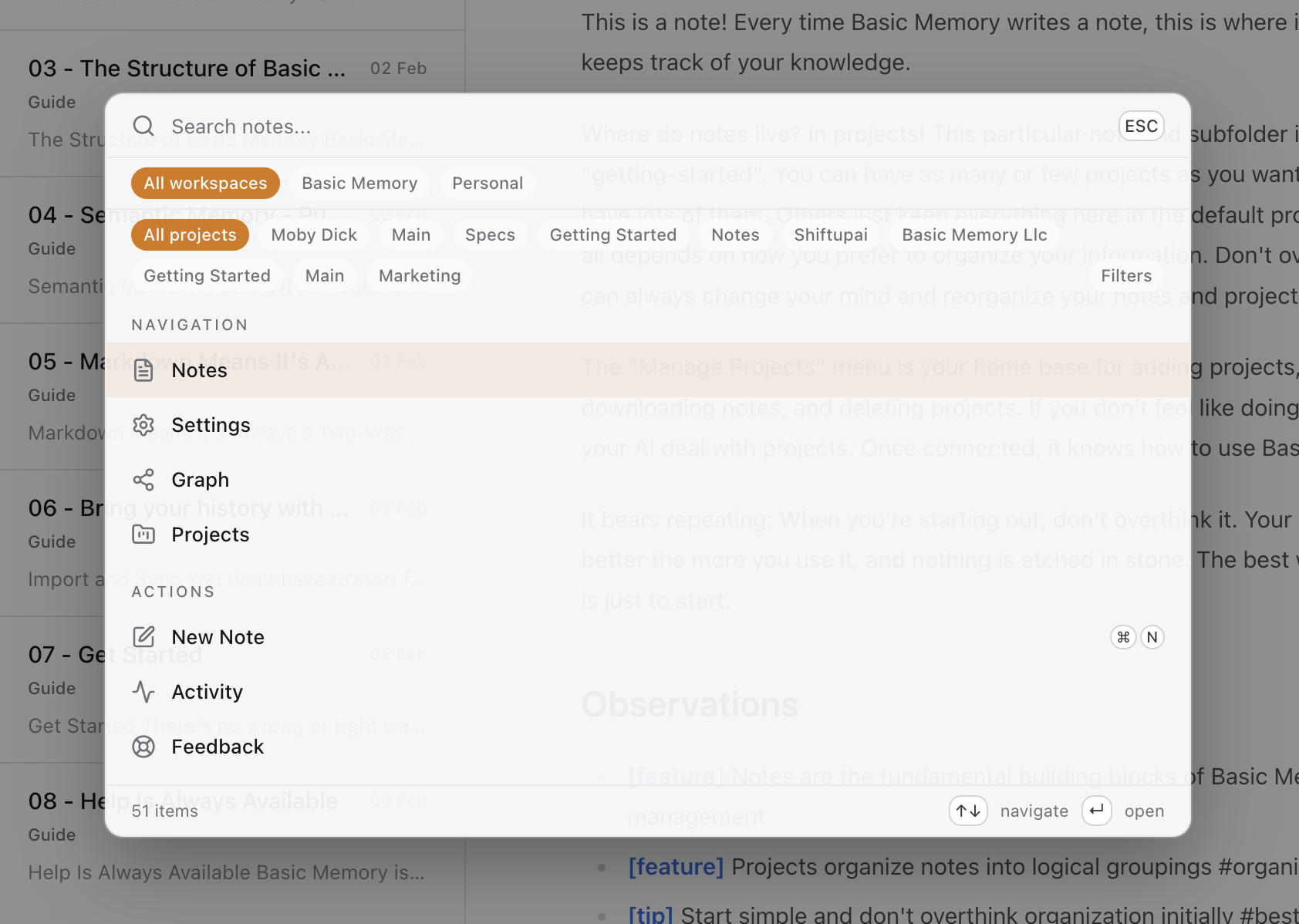
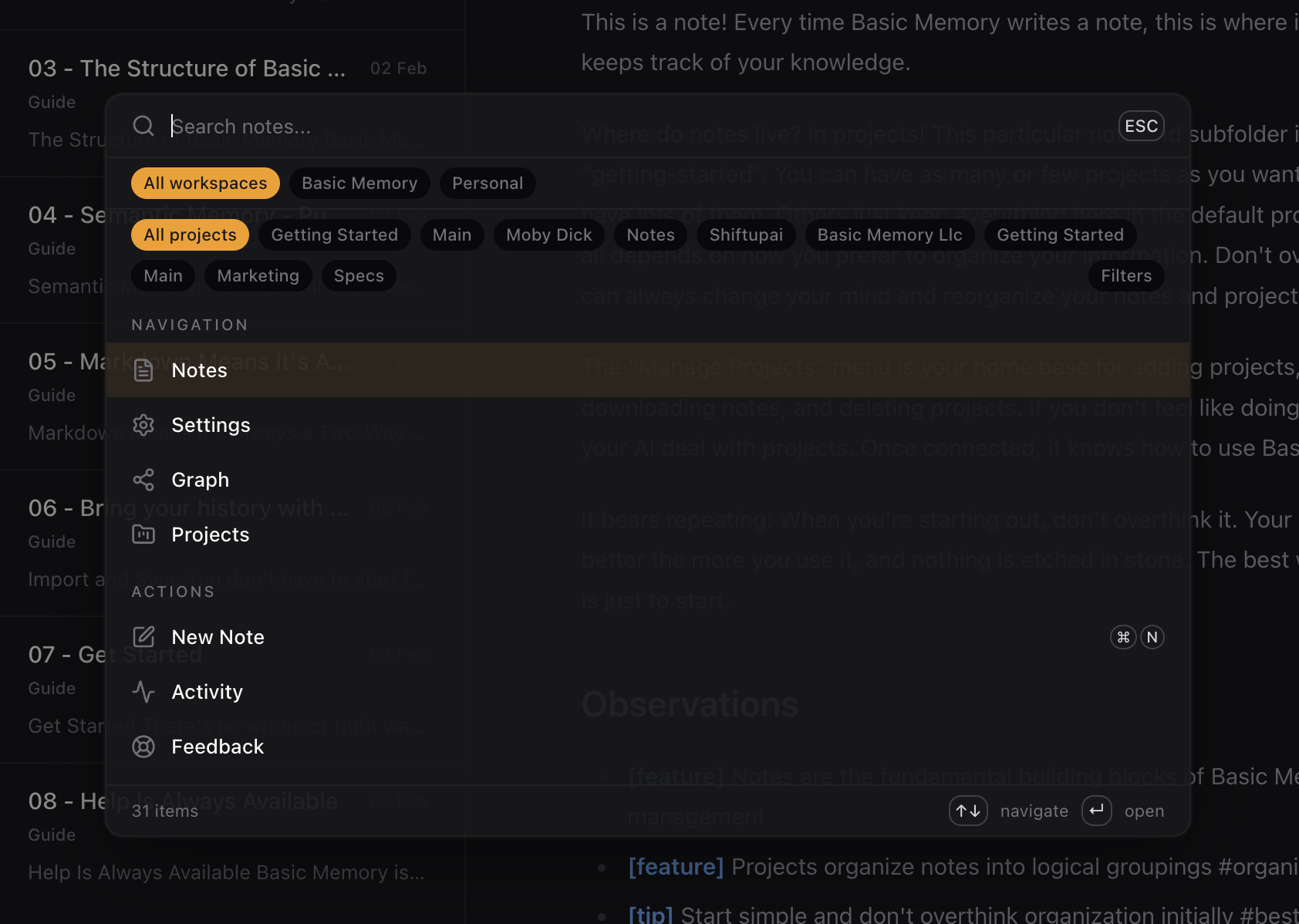
- Open the command palette (Cmd/Ctrl + K) → New Note
Move notes
- Use a note's
⋮menu → Move to relocate it to another folder, or - Drag the note card from the list onto the desired folder, or
- Drag a folder in the tree to move an entire directory.
Delete notes
Open a note's ⋮ menu → Delete.
Copy permalink and rename
From a note's ⋮ menu you can Rename Note and Copy link for your agent; the command palette also offers Copy Permalink.
Share a note
From a note's ⋮ menu, choose Share note to create a public, read-only link anyone can open without an account. See Shared Notes.
See a note's history
Every save creates a new version. Click the File history icon (clock) in a note's toolbar to browse the timeline, compare any earlier version against the current one, and merge old content back in. See File History.
Keyboard Shortcuts
The web app is designed for keyboard-first navigation. Press Cmd/Ctrl + / to see the full list in the app.
Command palette
Press Cmd/Ctrl + K to open the command palette and search for any action — navigate to notes, settings, the graph, or projects; create a new note; switch view modes; change theme; or run note and editor actions.
Formatting
| Shortcut | Action |
|---|---|
| Cmd/Ctrl + B | Bold |
| Cmd/Ctrl + I | Italic |
| Cmd/Ctrl + E | Inline code |
| Cmd/Ctrl + Option + 1 | Heading 1 |
| Cmd/Ctrl + Option + 2 | Heading 2 |
| Cmd/Ctrl + Option + 3 | Heading 3 |
| Cmd/Ctrl + D | Task checkbox |
Structure
| Shortcut | Action |
|---|---|
| Cmd/Ctrl + ] | Indent list |
| Cmd/Ctrl + [ | Outdent list |
View
| Shortcut | Action |
|---|---|
| Cmd/Ctrl + Shift + I | Rich editor |
| Cmd/Ctrl + Shift + P | Preview |
| Cmd/Ctrl + Shift + R | Source mode |
| Escape | Preview from editor |
Global
| Shortcut | Action |
|---|---|
| Cmd/Ctrl + K | Commands |
| Cmd/Ctrl + N | New note |
| Cmd/Ctrl + Option + E | Focus editor |
| Cmd/Ctrl + Option + Z | Toggle Zen mode |
| Cmd/Ctrl + / | Keyboard shortcuts |