

Members and Roles
Every member of a team has a role that determines what they can do, and a status that tracks their seat. This page is the canonical reference for both, plus the inviter's side of getting people in. Joining a team yourself? See Joining a Team Workspace.
Roles
| Role | Can do |
|---|---|
| Viewer | Read-only access to team projects and notes (can edit an invite-only project if granted edit access on it) |
| Editor | Read and write notes, and create projects |
| User Admin | Everything an editor can, plus manage members and invitations, view the audit log, and download project archives |
| Admin | Everything a user admin can, plus manage API keys |
| Owner | Everything an admin can, plus manage billing, snapshots, rename the team, and transfer ownership. A team can have only one member with the Owner role. |
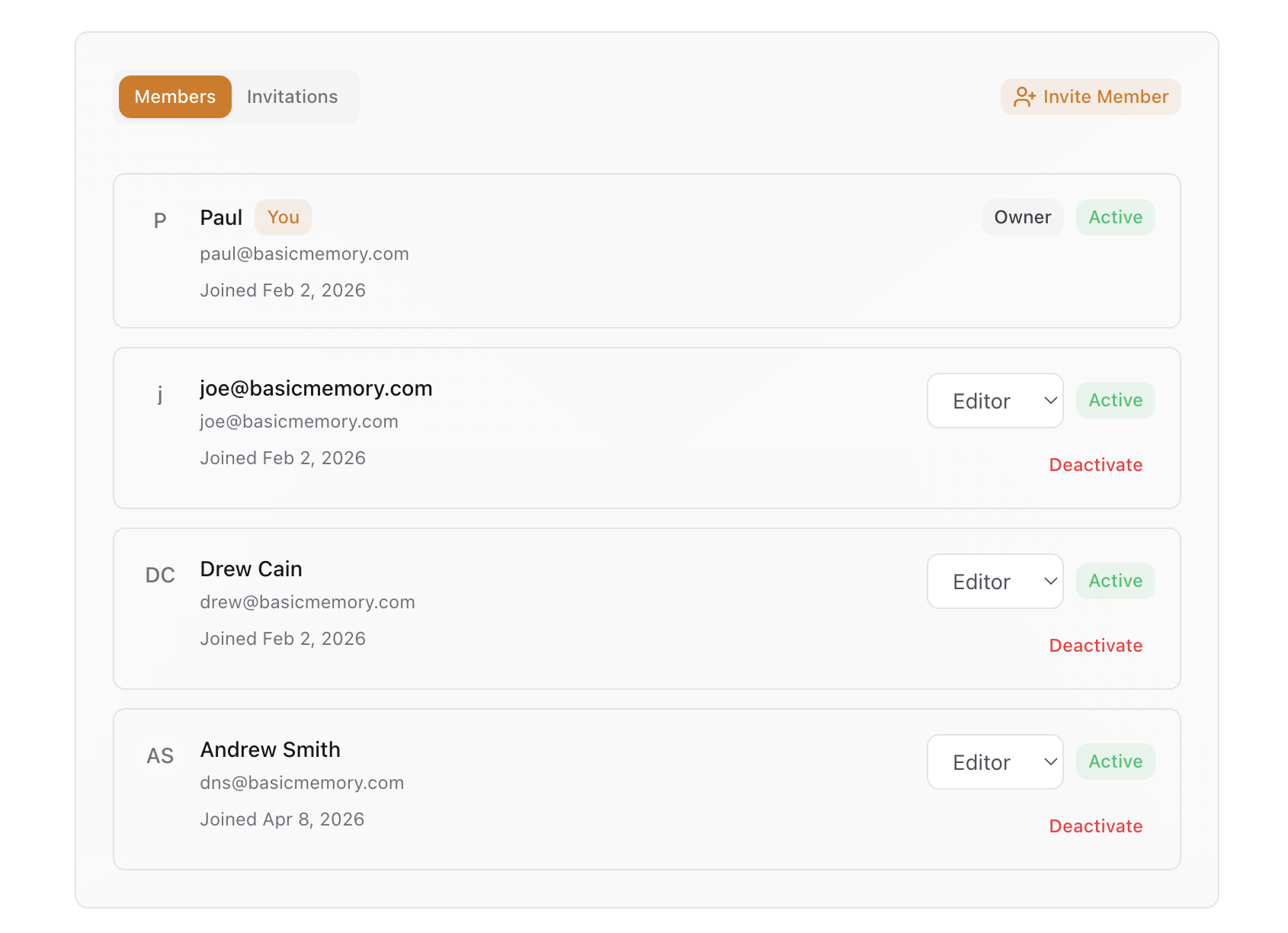
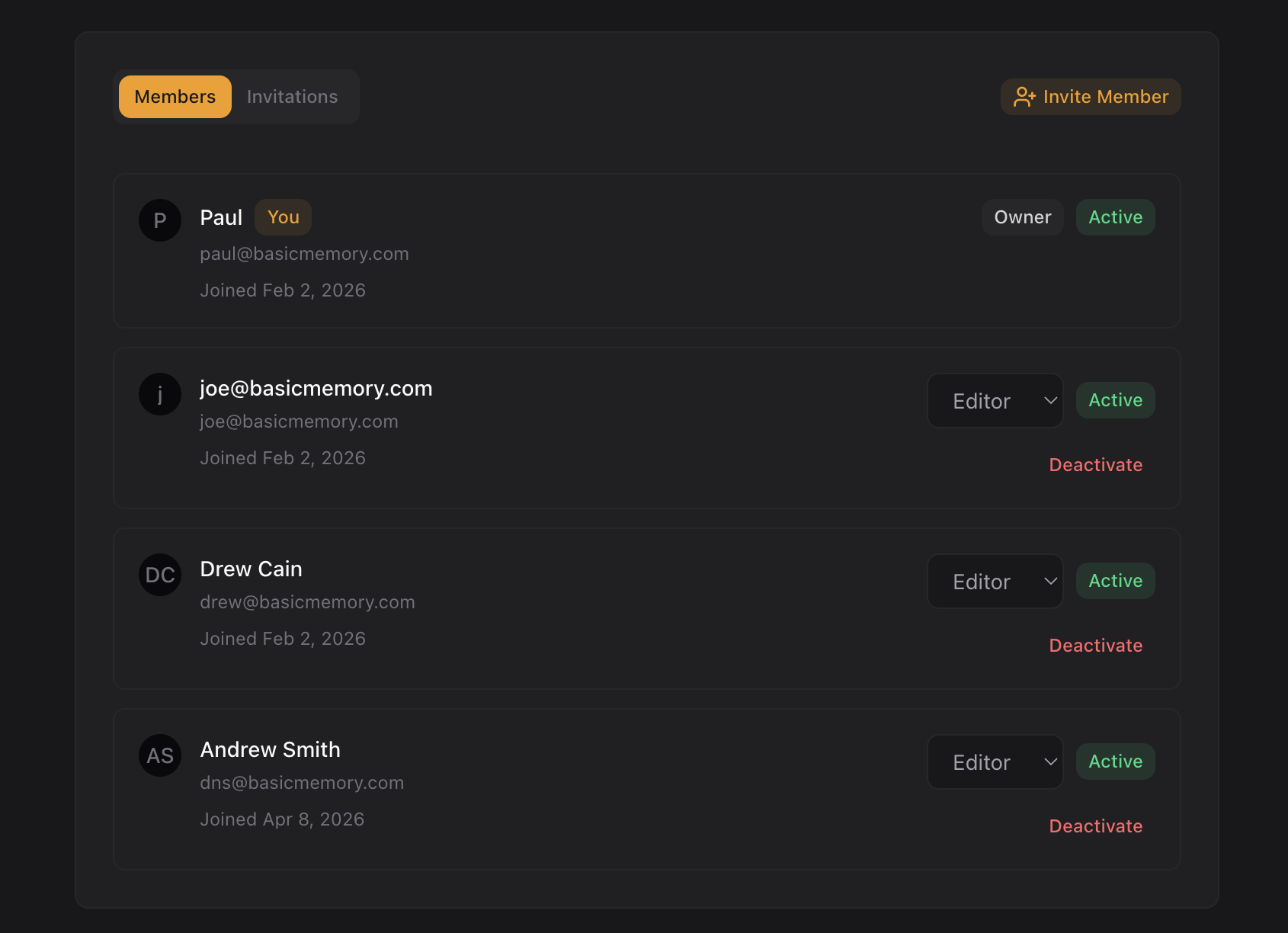
Once an invitation has been extended to a user, members also have a status:
- Pending — invited, but hasn't finished linking their account yet
- Active — accepted the invitation, claiming a seat, with full access according to their role
- Suspended — access paused because the team stayed over its seat allocation past the 14-day grace period; reactivating is instant once a seat frees up
- Deactivated — removed from the team; their history is preserved and their seat is released
Inviting members
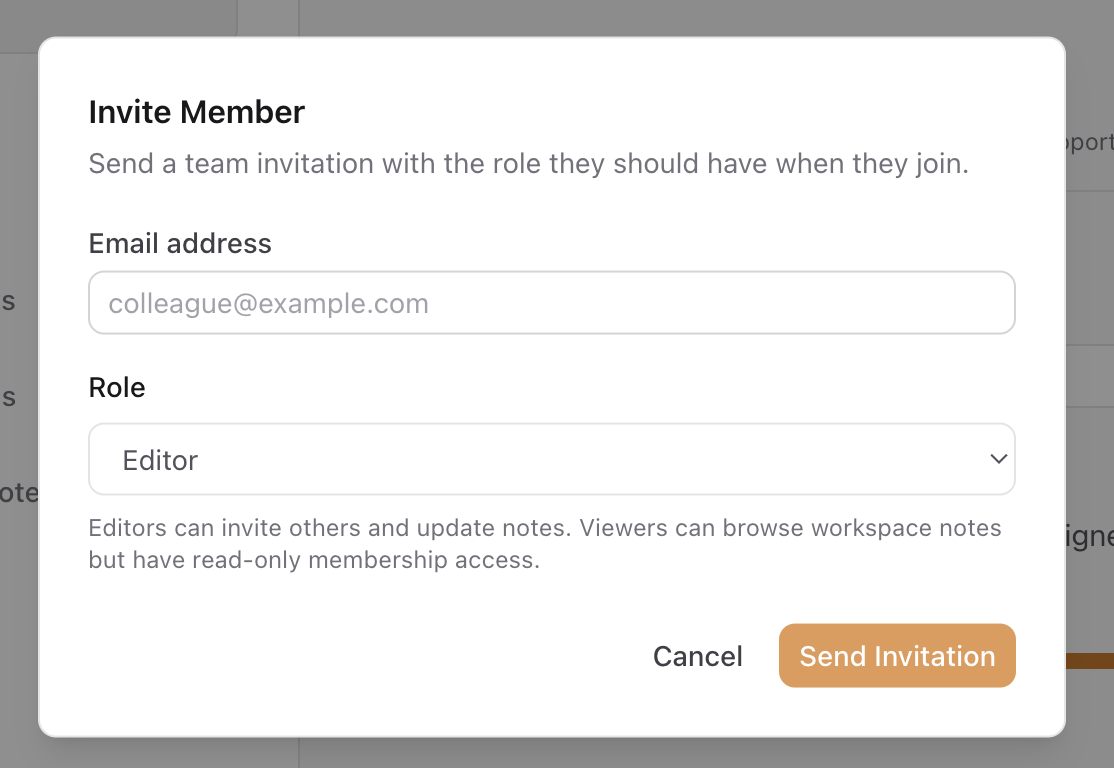
Owners, admins, and user admins invite people by email from Settings → Members — click Invite Member.
Send an invitation
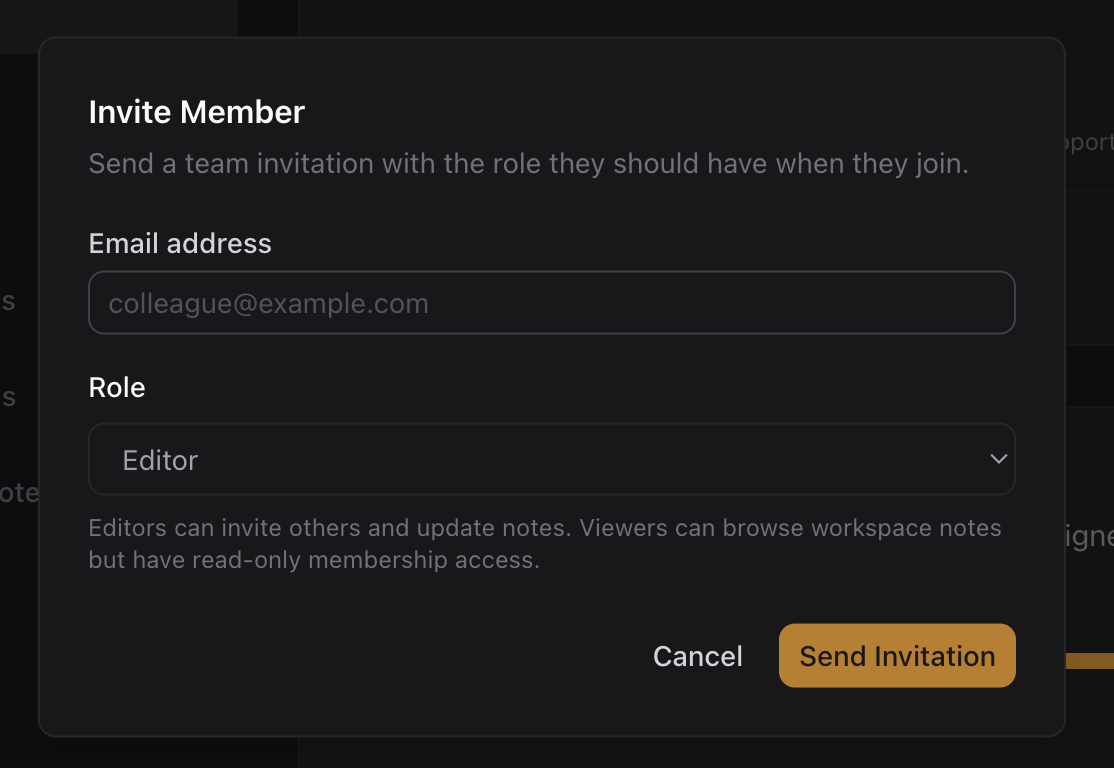
Enter the person's email address and choose a role. You can assign any role at or below your own — Owner is never an invite option.
They accept by email
The invitee gets an email with an accept link, signs in with the invited address, and becomes an active member. The full invitee-side walkthrough is on Joining a Team Workspace.

Managing members
From Settings → Members, anyone with the User Admin role or above can:
- Change a member's role — promote a viewer to editor, or vice versa. Roles can only be assigned at or below your own, and only the owner can act on another owner.
- Deactivate a member — removes their access and frees their seat. Their authored history stays intact.
- Reactivate a member — restores access, reassigning a seat if one is available.
Only the owner can:
- Transfer ownership — hand the workspace (and its subscription) to another member. The new owner takes over billing and management.
- Rename the team.