

ChatGPT
Basic Memory Cloud is available in ChatGPT's Plugin directory. Connecting the published plugin is the recommended setup; it does not require Developer mode or a server URL. Since ChatGPT connects to the hosted service, Basic Memory Cloud is required.
Install from the Plugin directory
Open Basic Memory Cloud
Open Basic Memory Cloud in ChatGPT. You can also select Plugins in the ChatGPT sidebar and search for Basic Memory Cloud.
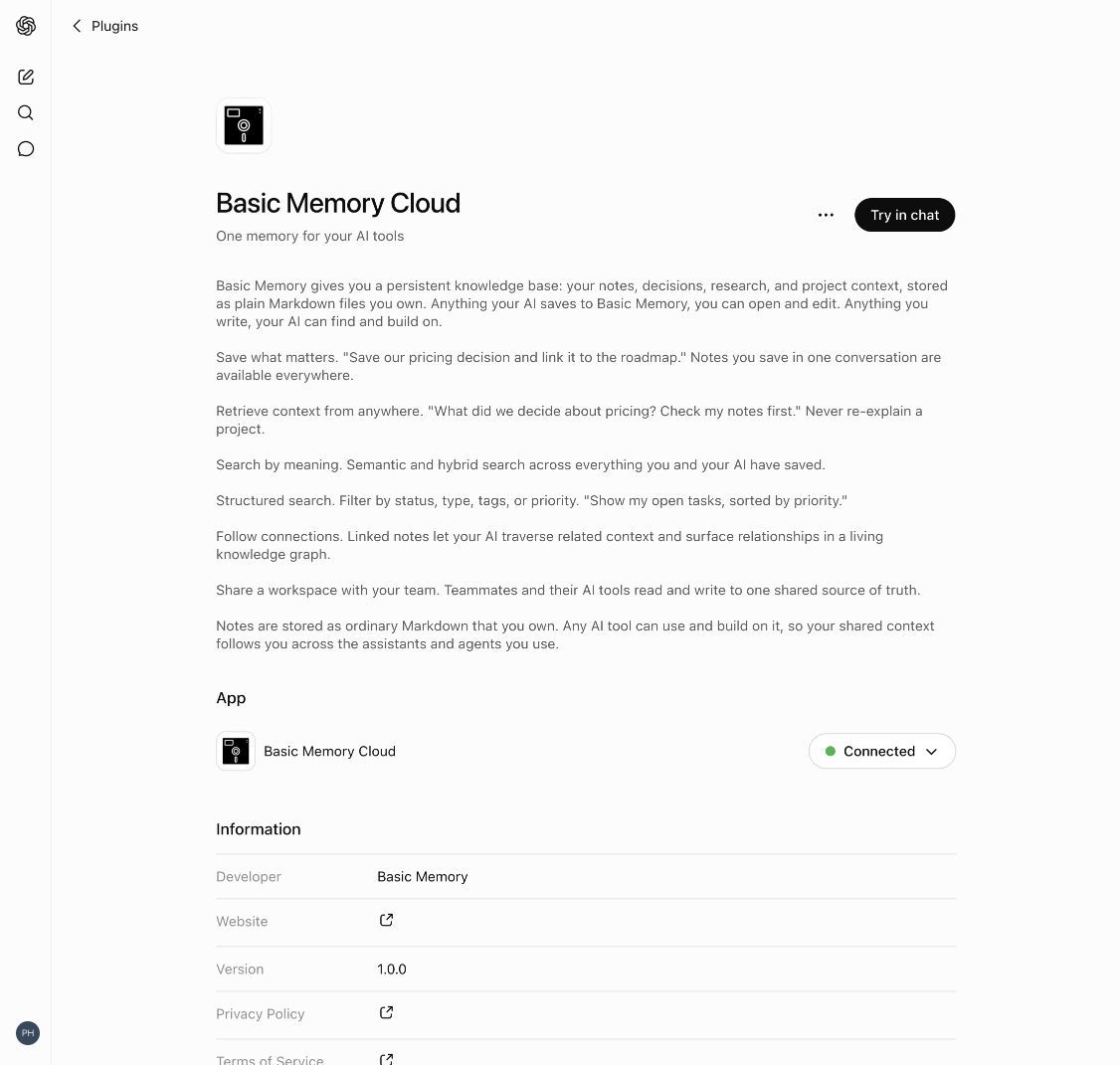
Connect your account
Select Connect and complete the Basic Memory authorization flow. If you do not have an account yet, you can create one during sign-in.
Start a chat
Select Try in chat from the plugin page. In an existing conversation, type @ and choose Basic Memory Cloud, or select + → More → Basic Memory Cloud.
Verify the connection
Ask:
List my Basic Memory projects.
Manual setup with custom MCP
Use this only when you need a custom MCP connection or cannot use the published plugin. Plugin-directory users can skip Developer mode entirely.
Create a Basic Memory account
Sign up at basicmemory.com.
Enable Developer mode
In ChatGPT, go to Settings → Apps & Connectors → Advanced settings and enable Developer mode.
Add the MCP server
Select Create and enter:
- Name: Basic Memory
- Server URL:
https://cloud.basicmemory.com/mcp
Authenticate and enable
Complete the OAuth flow, then select Basic Memory from the app or MCP selector in your conversation.
Try It
Once connected, ask ChatGPT to work with your knowledge base:
- Search: "Find my notes about authentication design"
- Retrieve: "Show me the full contents of my API documentation"
- Semantic search: "Find notes conceptually related to microservice architecture" — the default
searchtool already searches semantically (hybrid mode)
ChatGPT will call the appropriate tools behind the scenes, searching and fetching documents as needed.
Use the interactive Basic Memory app
When you ask to open or browse Basic Memory, ChatGPT can display the Pocketbook directly in the conversation. From there you can switch projects and folders, browse or search notes, explore the graph, follow wiki links, edit notes, toggle tasks, and work through comments and suggested edits.
Try:
Open Basic Memory search for quarterly planning.
If you only ask a question about your notes, ChatGPT uses the normal search and read tools instead of opening the interface. See Pocketbook for the full workflow.
Important Notes
Troubleshooting
Plugin not found — Open the direct plugin page or search the Plugin directory for the exact name Basic Memory Cloud.
Connect is disabled — Your plan, region, role, or workspace policy may restrict the app. In a managed workspace, ask an admin to review Workspace settings → Plugins and the underlying app in Workspace settings → Apps.
Authentication errors — Disconnect and reconnect the Basic Memory Cloud app, then complete the OAuth flow again. If you used the manual custom MCP flow, remove and re-add that server.
Basic Memory is not used in a chat — Type @Basic Memory Cloud or select + → More → Basic Memory Cloud. Starting from Try in chat on the plugin page also creates a conversation with it enabled.
No results returned — Make sure your Basic Memory Cloud account has synced content. Check your project at app.basicmemory.com.
For ChatGPT's current platform instructions, see Plugins in ChatGPT and Codex.