

File History
Every saved version of a note is preserved automatically in Basic Memory Cloud. Open File history on any note to see its full timeline, compare an earlier version side-by-side with the current one, and apply changes back into the live note. It's the fast, per-note answer to "I want to undo something" — distinct from Snapshots, which are workspace-wide point-in-time backups.
Open File history
In the web app, open the note you want to look back at, then click the File history icon (clock) in the note's toolbar.
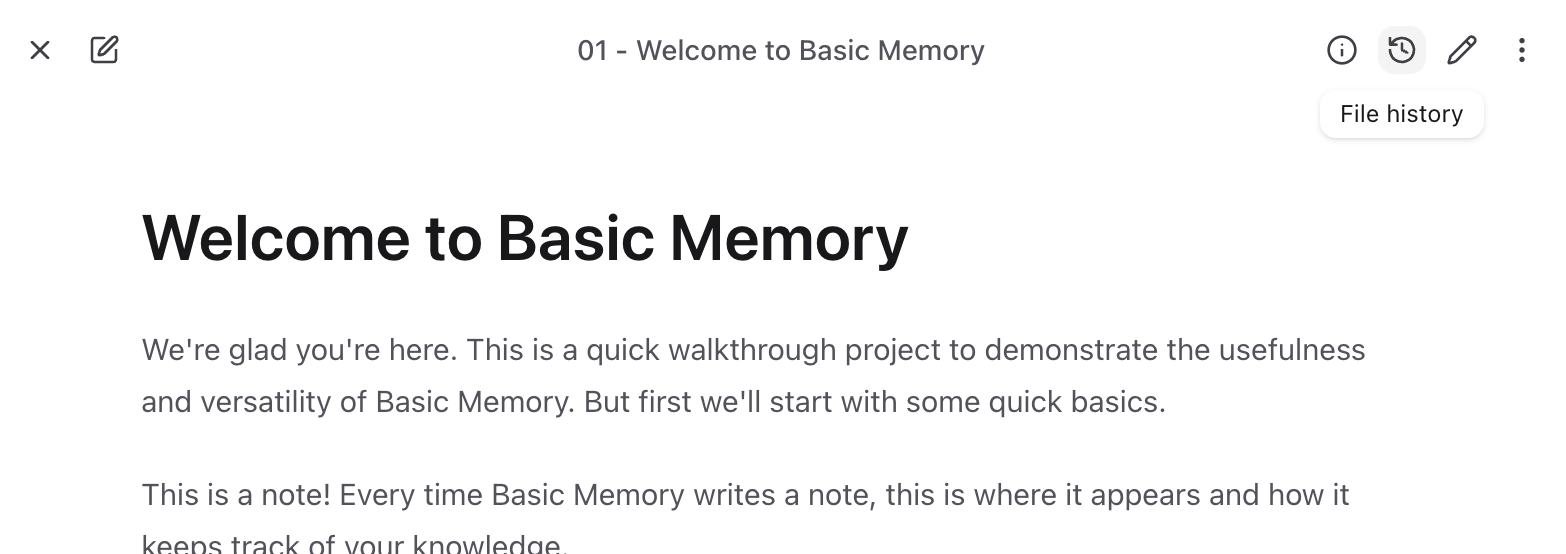
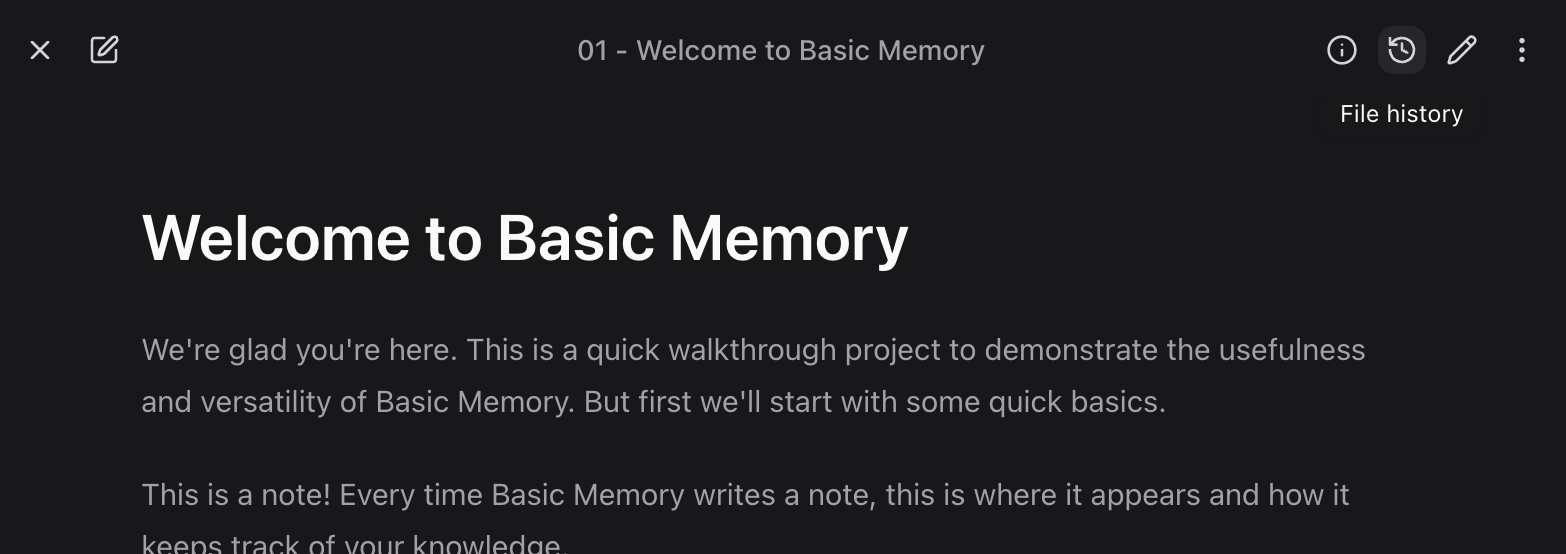
A modal opens with two panes:
- Left: the timeline of versions, newest first. Each row shows the timestamp, a short version ID, and the file size. The latest version is marked Current.
- Right: a side-by-side diff between the version you've selected (read-only, on the left of the diff) and the current note (editable, on the right).
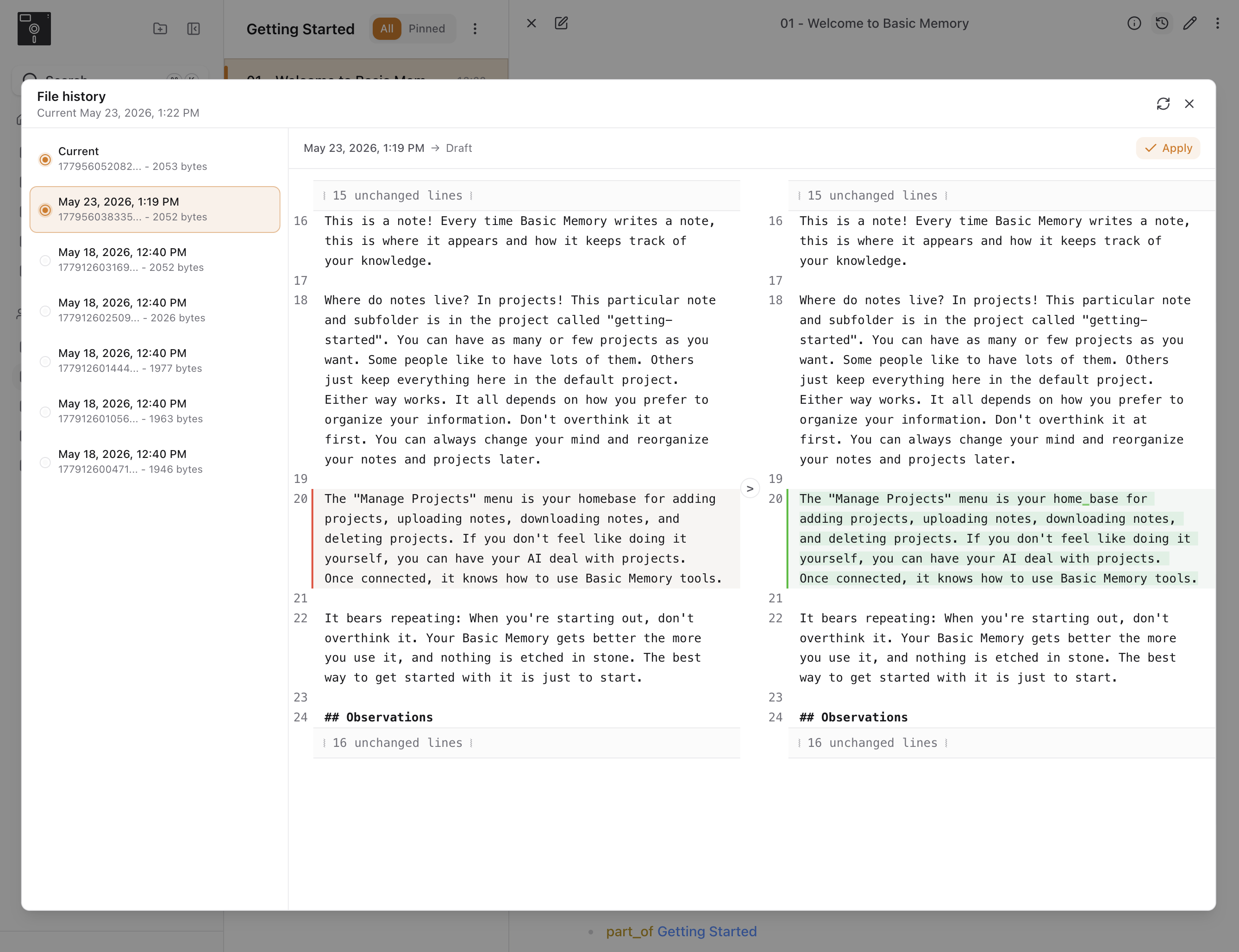
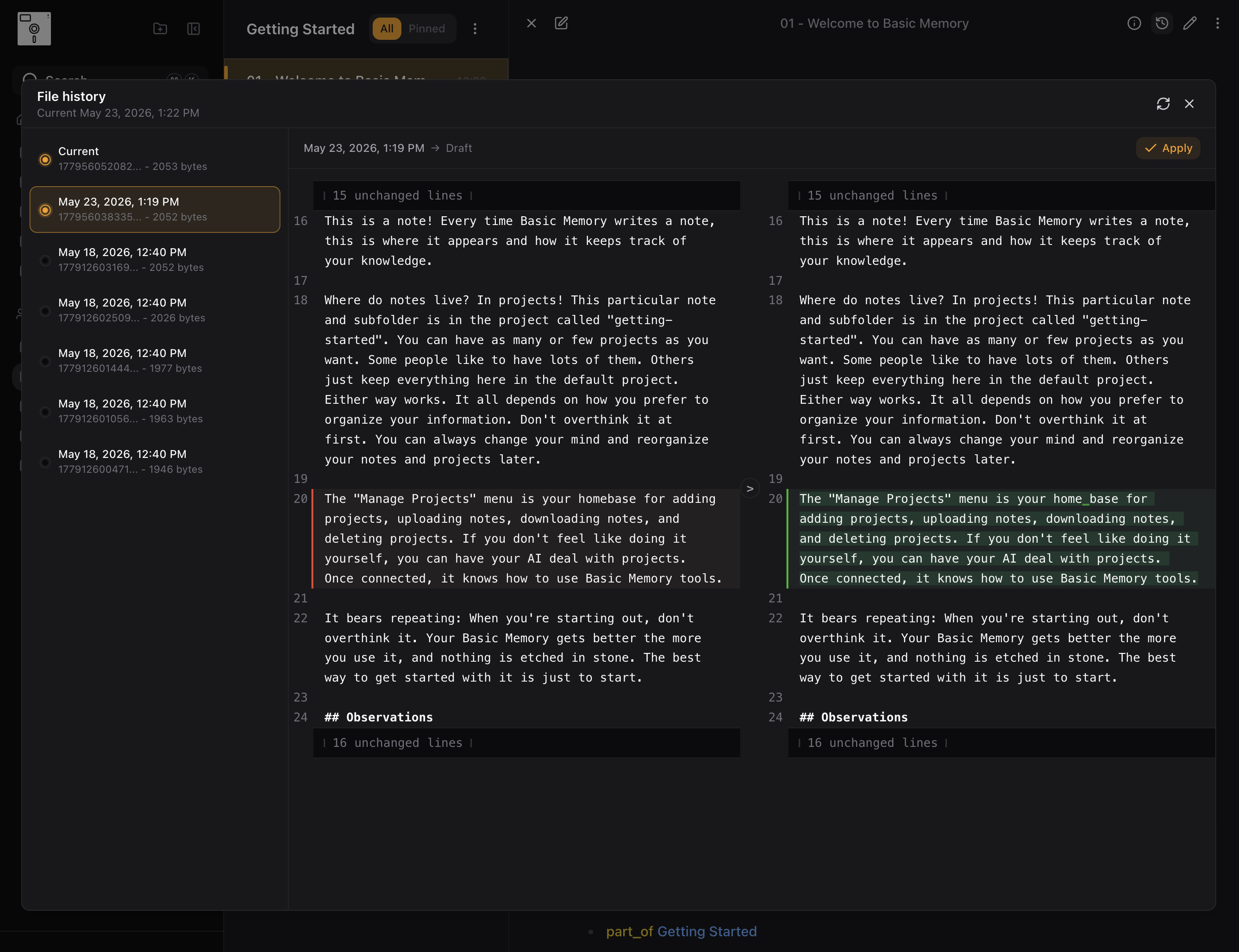
Select a version on the left to load it into the diff. Use Load more at the bottom of the list if you have a long history.
Restore (or merge) an old version
The diff view isn't just a viewer — the right side is a live, editable draft of what your note will become when you click Apply.
You have two ways to bring old content forward:
- Pick exactly what you want. Use the
>revert controls in the diff to accept individual changes from the old version into the draft. - Edit the draft directly. Type into the right pane to make manual tweaks before applying.
When the draft looks right, click Apply. That saves the merged content as a new version — it doesn't overwrite or rewind history. Your existing versions stay intact, with the freshly applied content sitting on top as the new Current.
When Apply is disabled
A few states will gray out the Apply button:
- Unsaved edits in the main editor. Save your current draft first, then apply from history.
- "File history is catching up." Your most recent save hasn't reached the storage layer yet. Wait a moment and refresh.
Apply can also fail after clicking with "Current file version changed; refresh before applying." — someone (or something) wrote the note while you were merging. Refresh history and reapply on top of the new current version.
Who can see and use it
- View history — anyone with read access to the note (Viewer and above).
- Apply a version — anyone with edit access (Editor and above). Viewers can browse history but can't write.
In a team workspace, this follows the project's normal access rules.
File history vs. Snapshots
| File history | Snapshots | |
|---|---|---|
| Scope | One note at a time | The whole project / workspace |
| Created | Automatically on every save | Automatically daily + manually on demand |
| Use it for | "I want to undo the last few changes to this note" | "I want to roll back a bulk reorganization" or "I deleted a folder by accident" |
| Restore creates | A new version of the note | Files written back into the live project |
| Best for | Granular per-note recovery | Project-scale recovery |
Both work alongside each other — start with File history for a single note, fall back to a Snapshot when you need a bigger rollback. See Restore Lost Content for a recovery decision guide.
Under the hood
File history is built on object versioning in our underlying storage (Tigris). Each save writes a new object version, so every meaningful state of every note is preserved — without any extra storage choreography on your part.
For more on the architecture, see the Tigris case study: Own Your AI Context with Basic Memory.
Related
- Restore Lost Content — when to use File history vs. Snapshots
- Cloud Snapshots — workspace-wide point-in-time backups
- Web App — the editor and surrounding UI
- Teams — permissions in a shared workspace