

Pocketbook (Interactive MCP App)
Basic Memory Cloud includes Pocketbook, its Interactive MCP App, inside compatible AI clients. It brings a focused version of your workspace into the conversation, so you can browse notes, set a writing location, or make a quick edit without switching to a separate browser tab.
The app is part of the hosted Cloud connector at https://cloud.basicmemory.com/mcp; there is no second server or separate installation.
- ChatGPT — web and desktop
- Claude — web and desktop
Open Basic Memory in a conversation
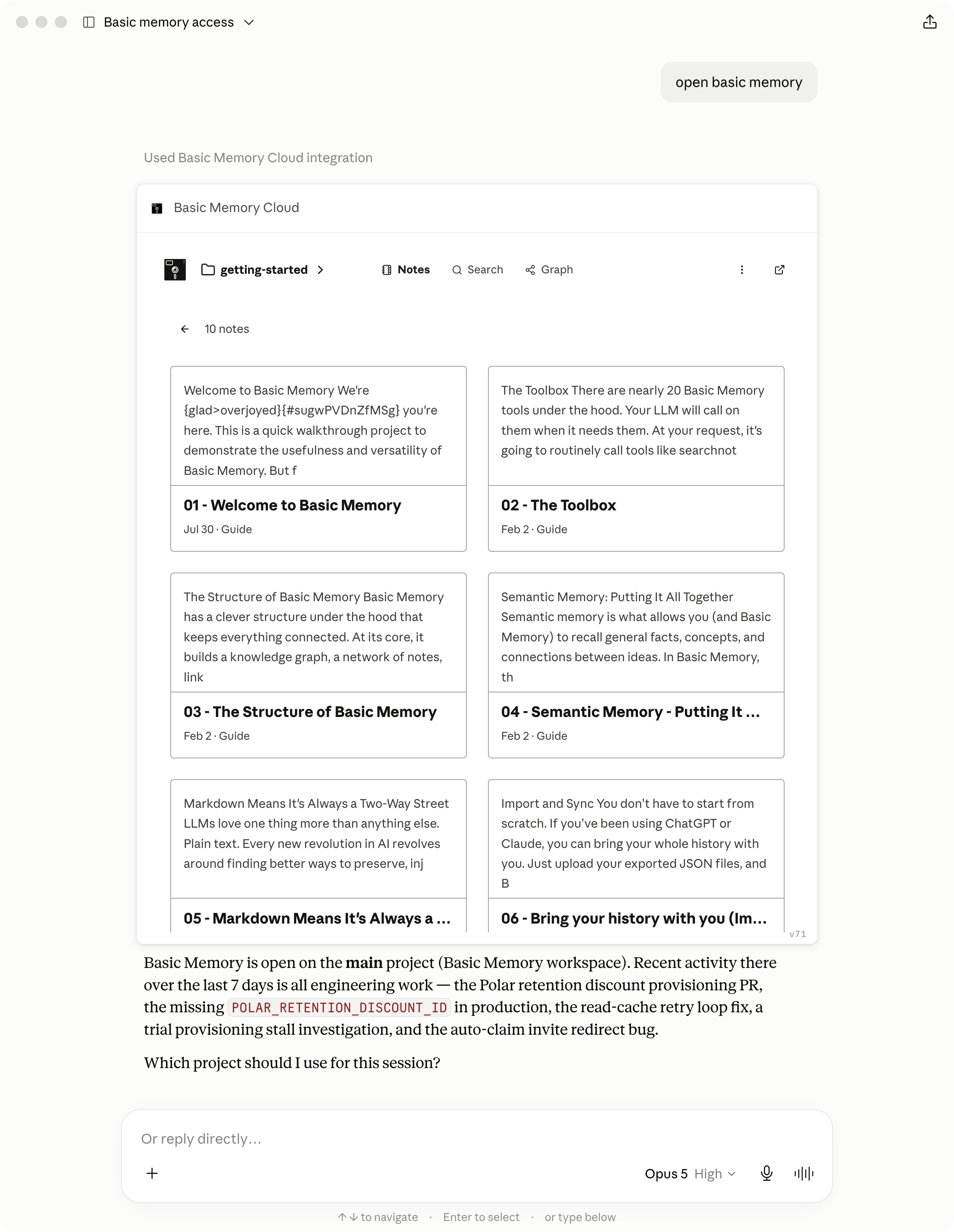
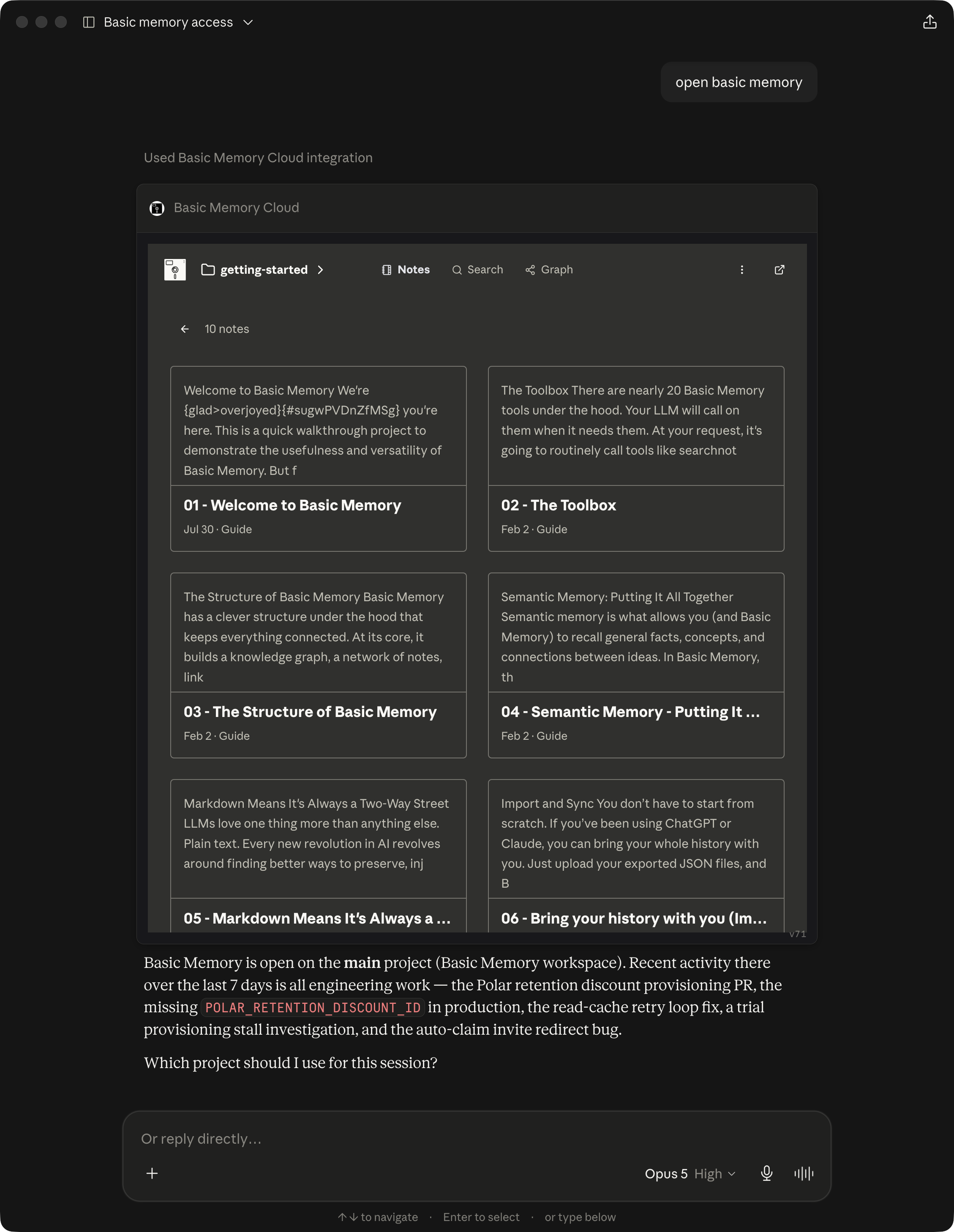
Ask naturally for a visual or interactive view:
Open Basic Memory.
Show my project notes.
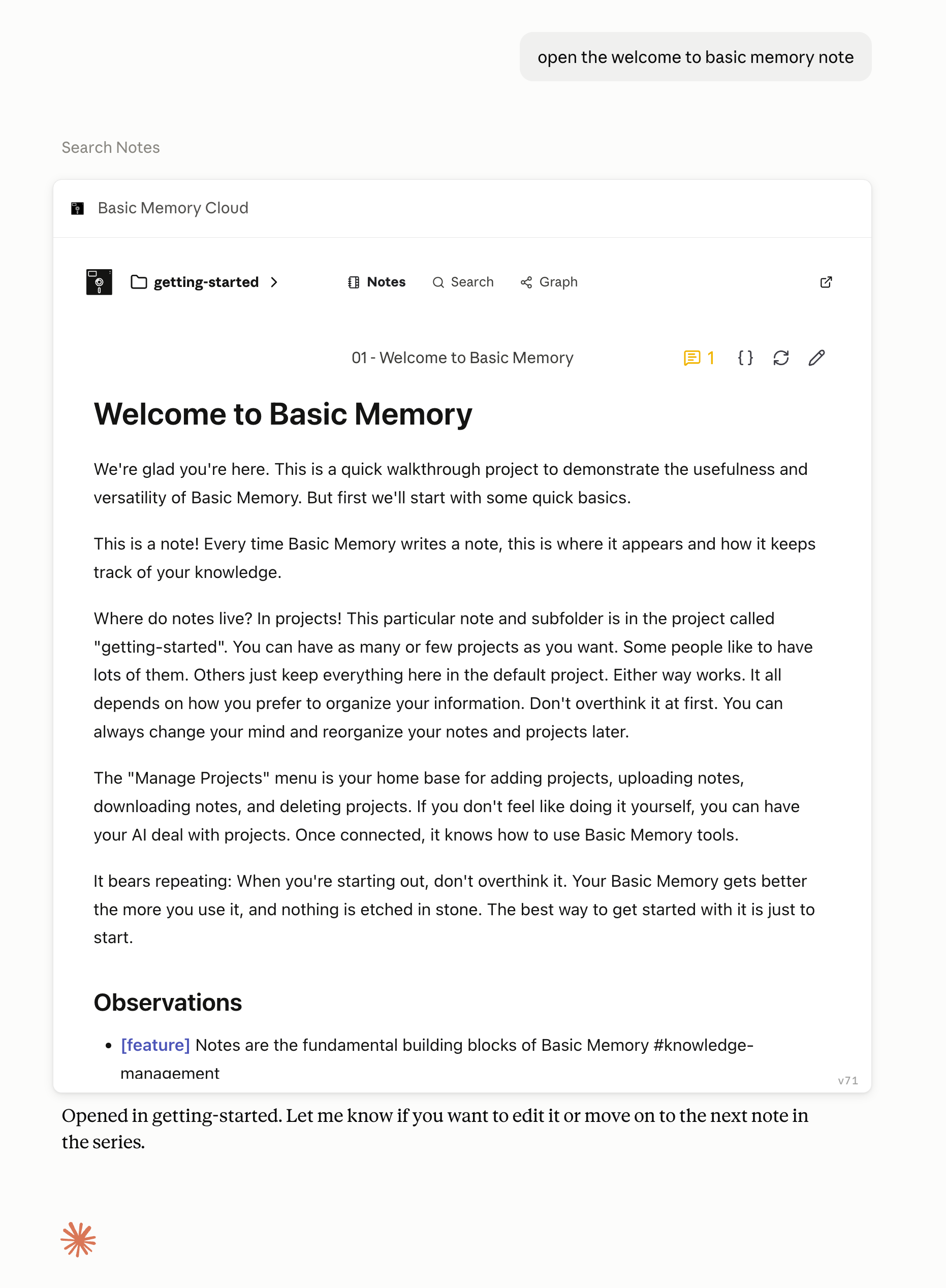
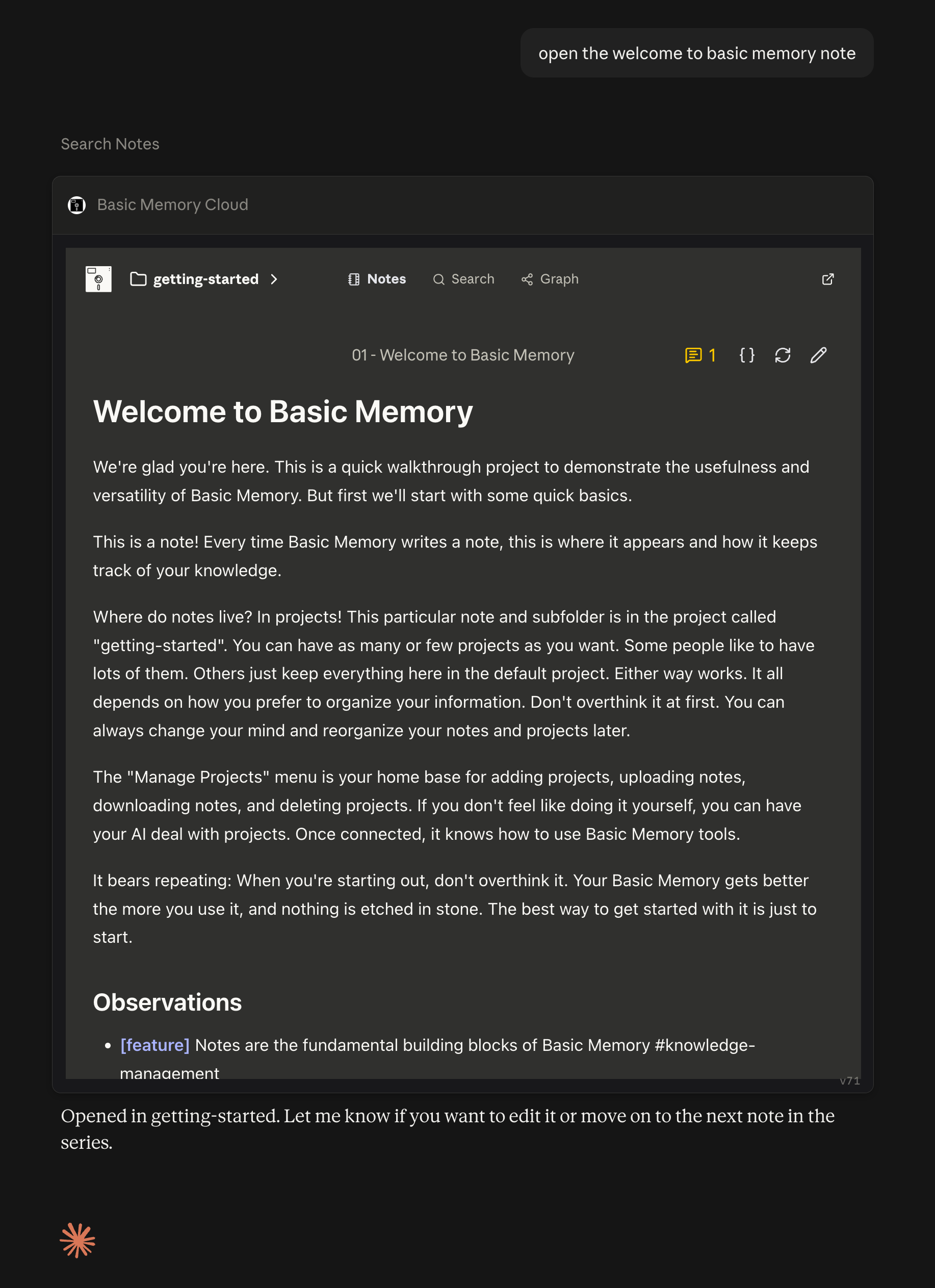
Open my note about API design.
Let me browse the research folder.
Open Basic Memory search for authentication.
Show the knowledge graph around my architecture note.
Your assistant calls open_basic_memory and opens the requested view. The default workspace and project resolve automatically, so you do not need to list or choose a project first unless you want a different location.
Expand the app to full screen
When your AI client supports full-screen MCP Apps, the diagonal-arrow Expand action appears in the app header beside the link to the full Basic Memory web app.
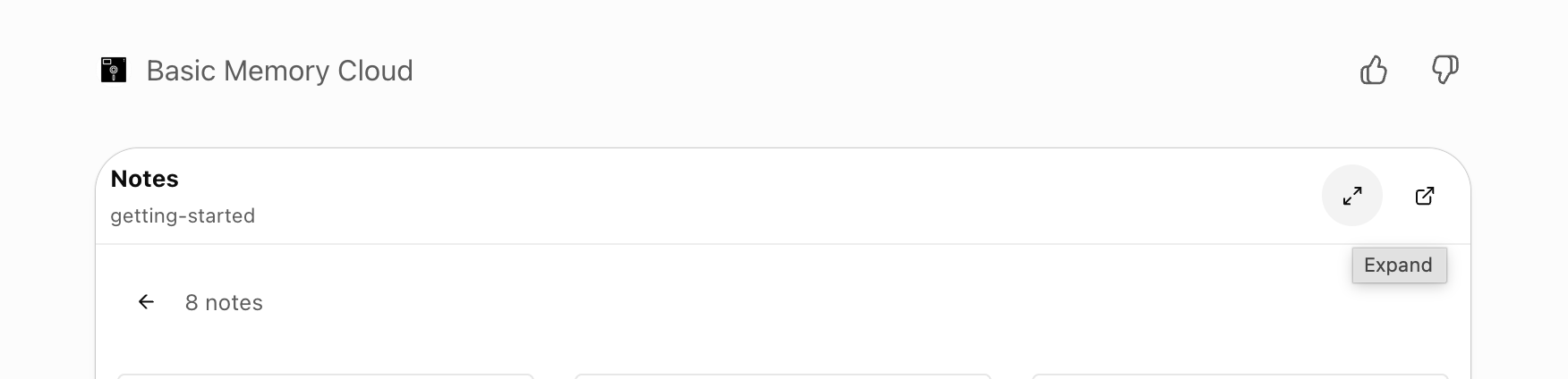
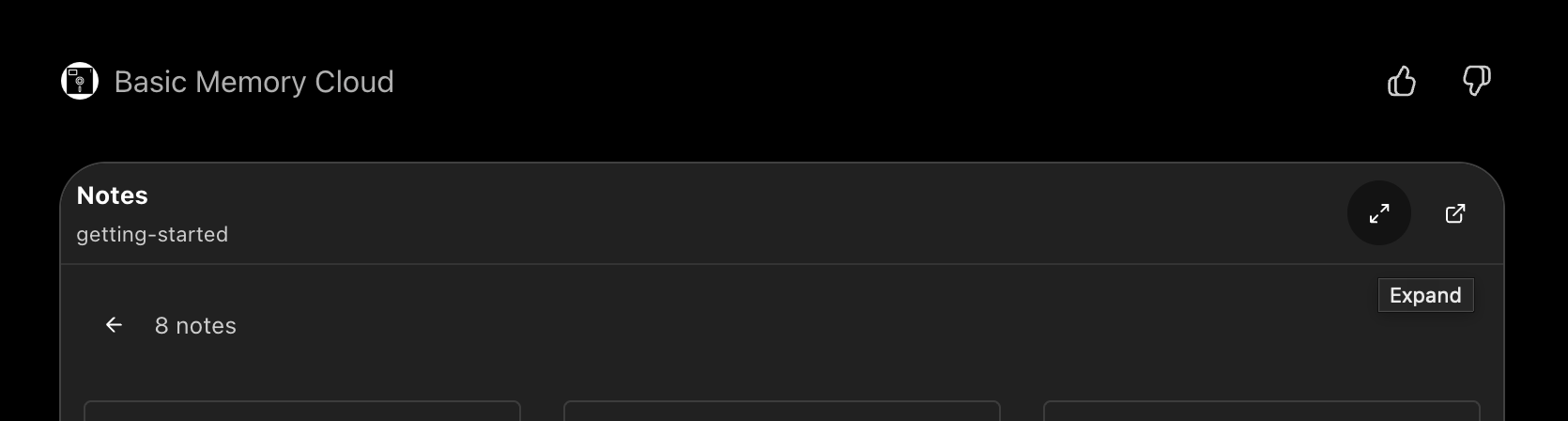
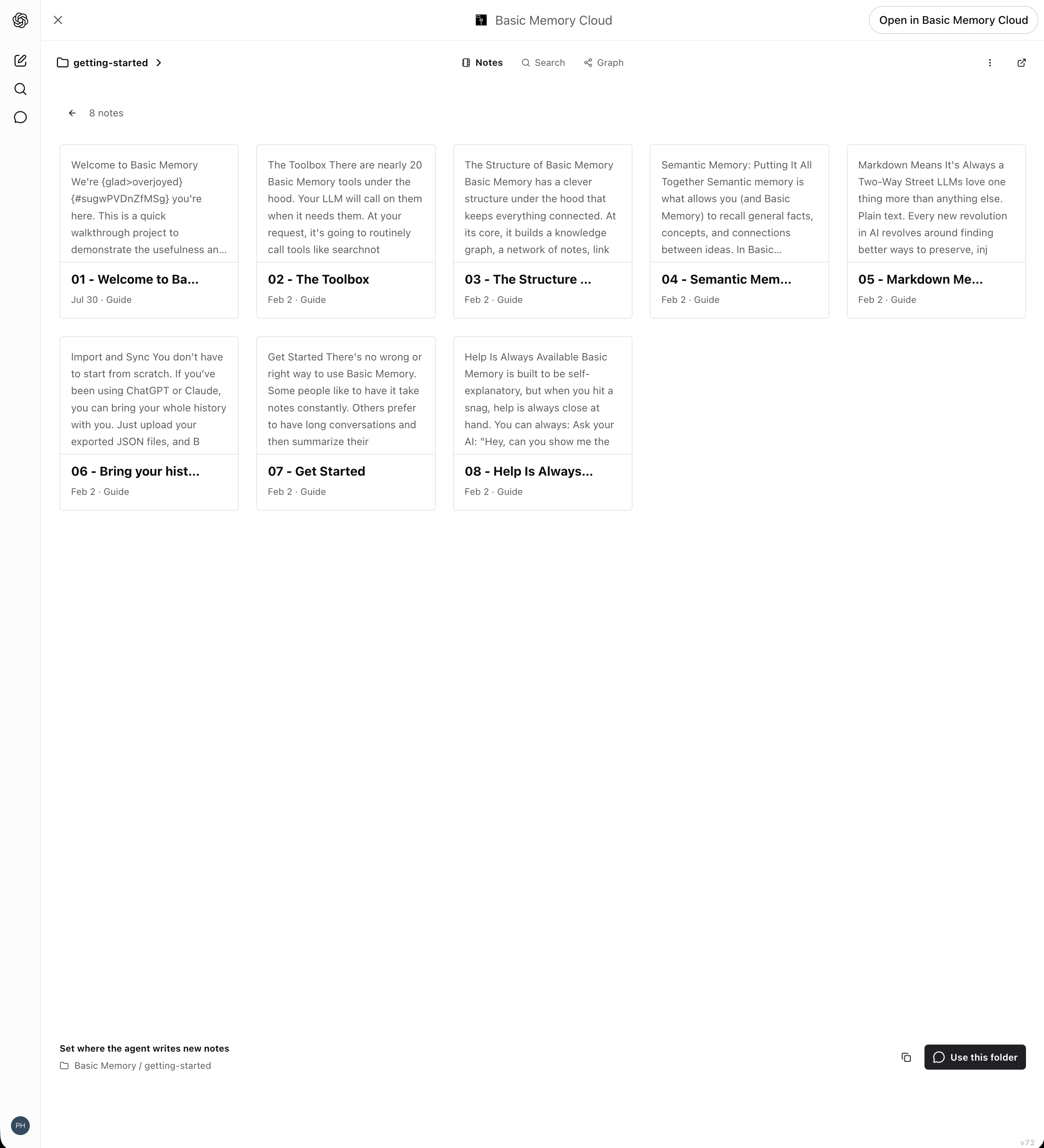
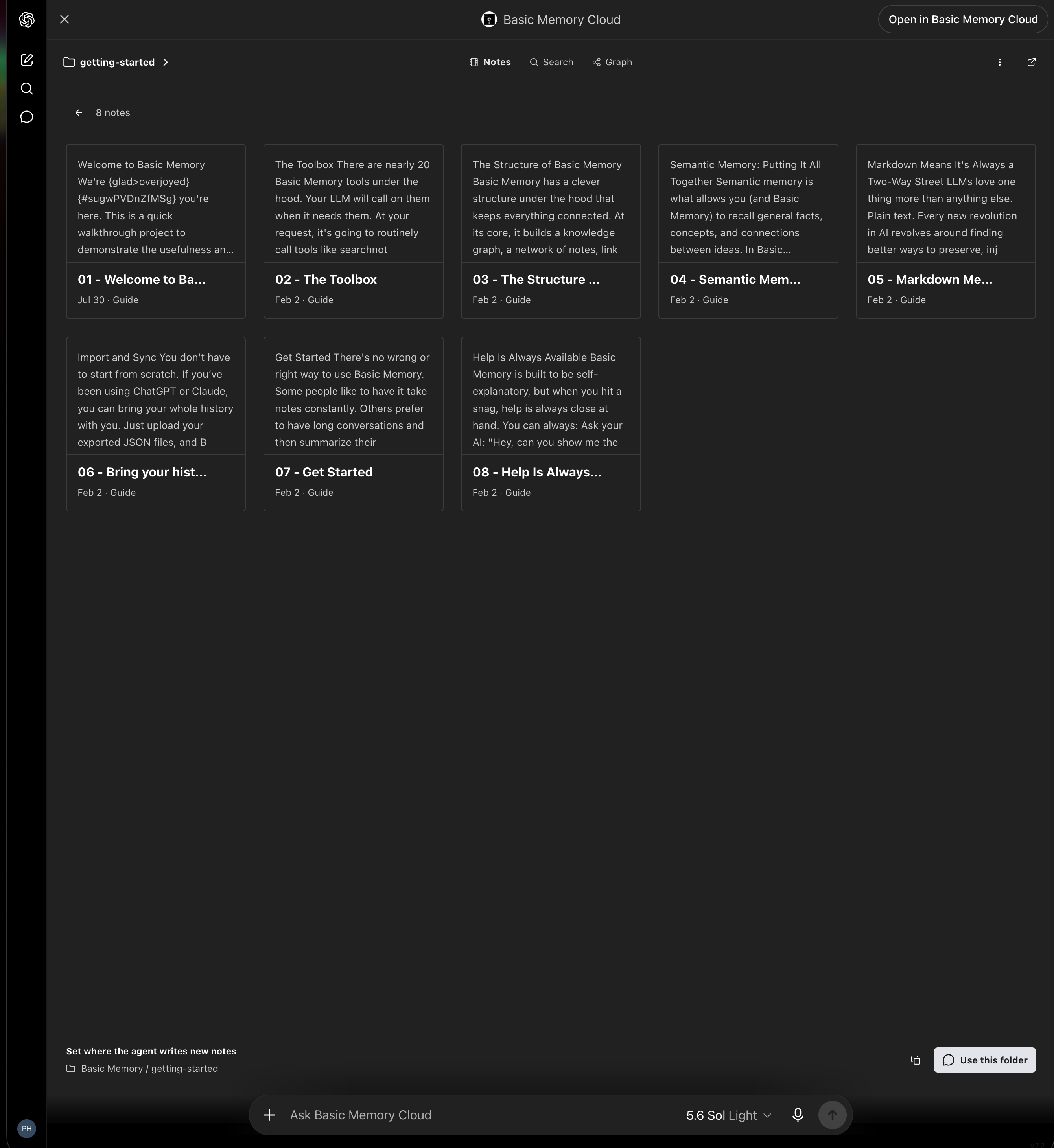
Choose Expand to move from the compact conversation card into a larger workspace. Full-screen mode keeps the project or folder picker, Notes, Search, Graph, the active writing-location control, and the full web-app link together while giving note cards, editors, and graphs more room.
The exact full-screen frame is controlled by the AI client. Use its close or return control to go back to the conversation.
Choose where new notes go
The Notes view is both a browser and a location picker. Use the breadcrumb at the top to switch workspaces, projects, and folders. Folder cards show their note counts, note cards open in place, and Load more pages through longer directories. The external-link action opens the current location in the full Basic Memory web app.
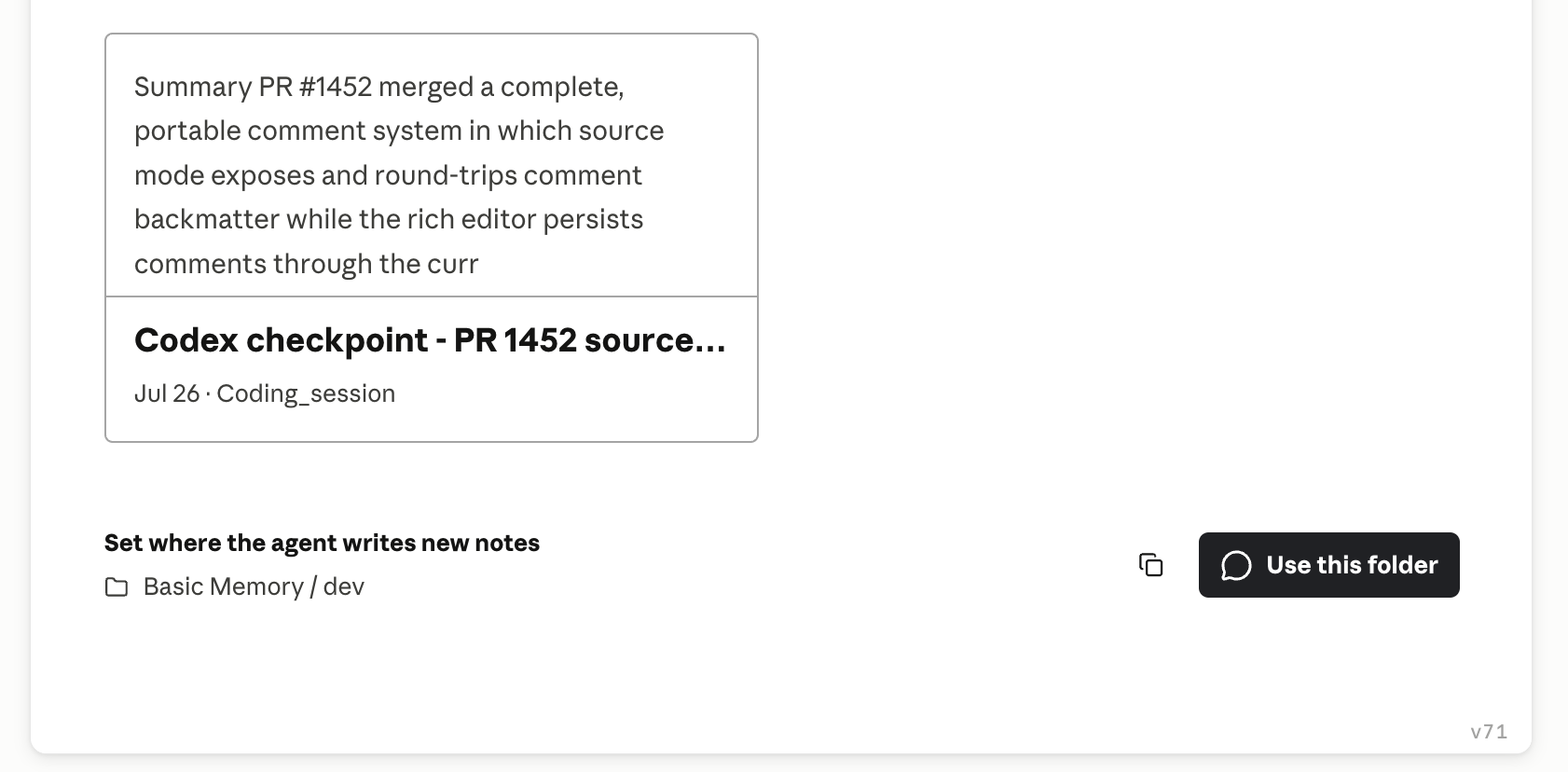
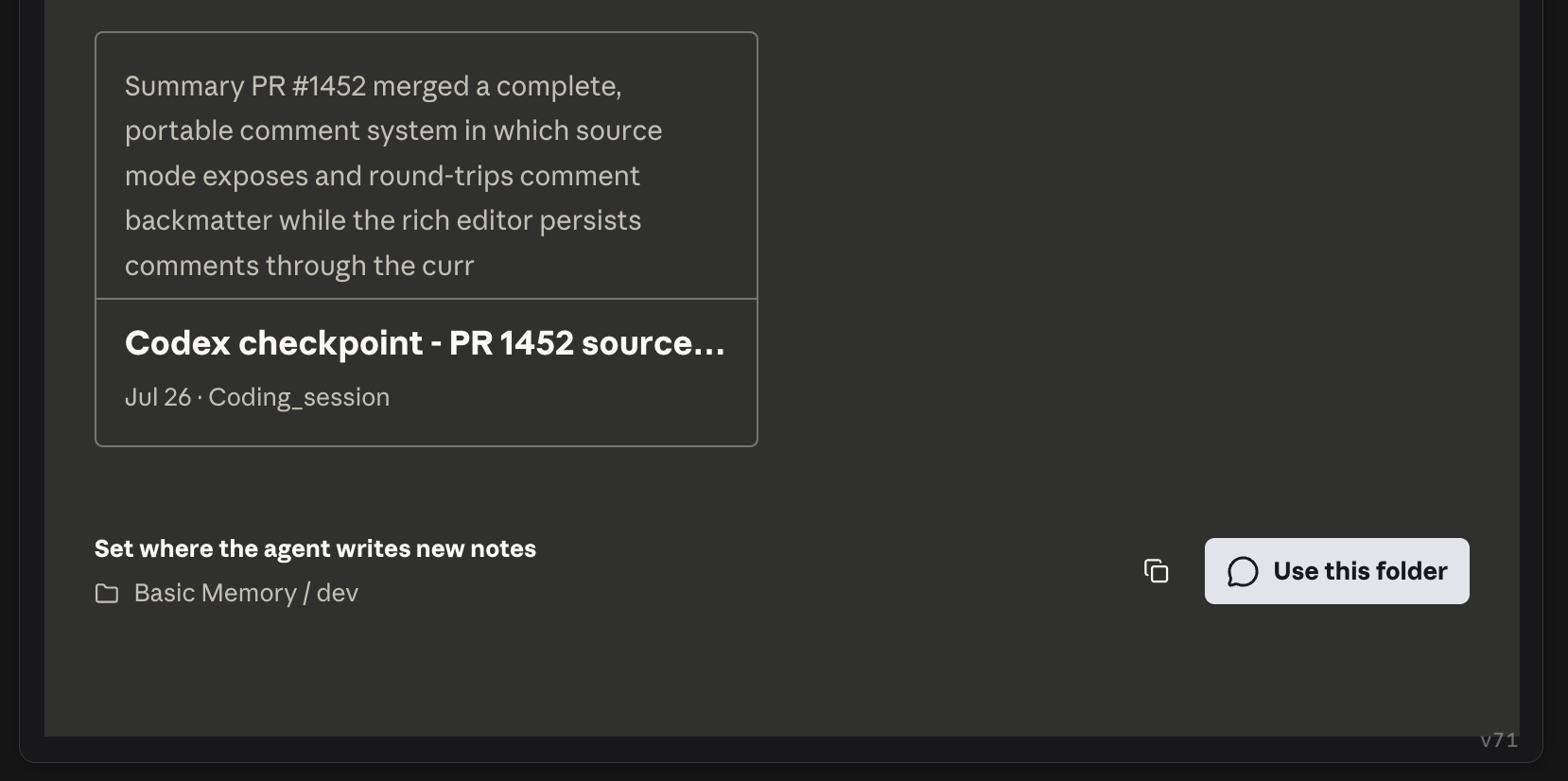
Choose Use this folder to make the current workspace, project, and directory the active writing location for the conversation. The app marks it as Active folder, and the copy action lets you reuse its Basic Memory location elsewhere.
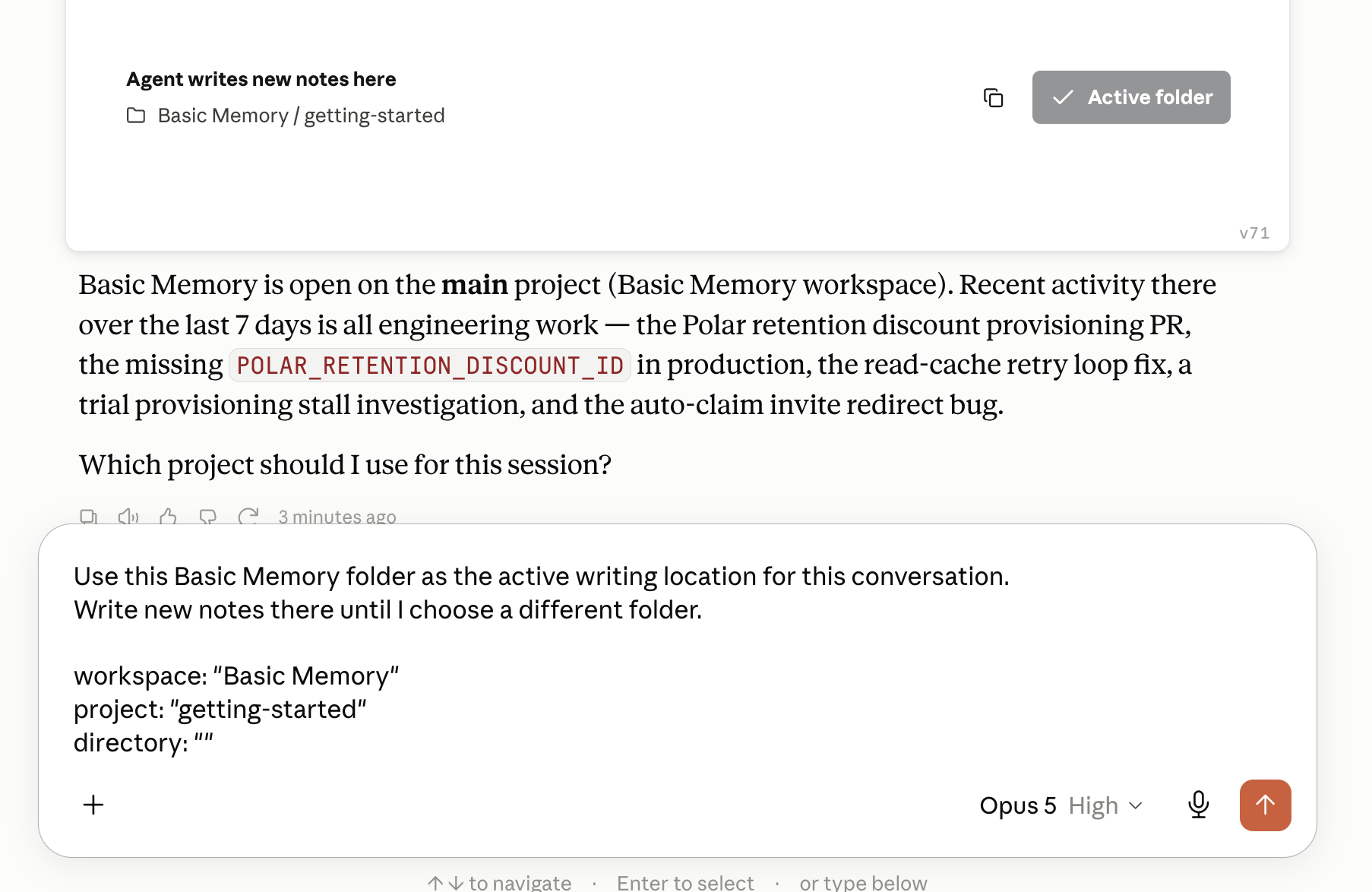
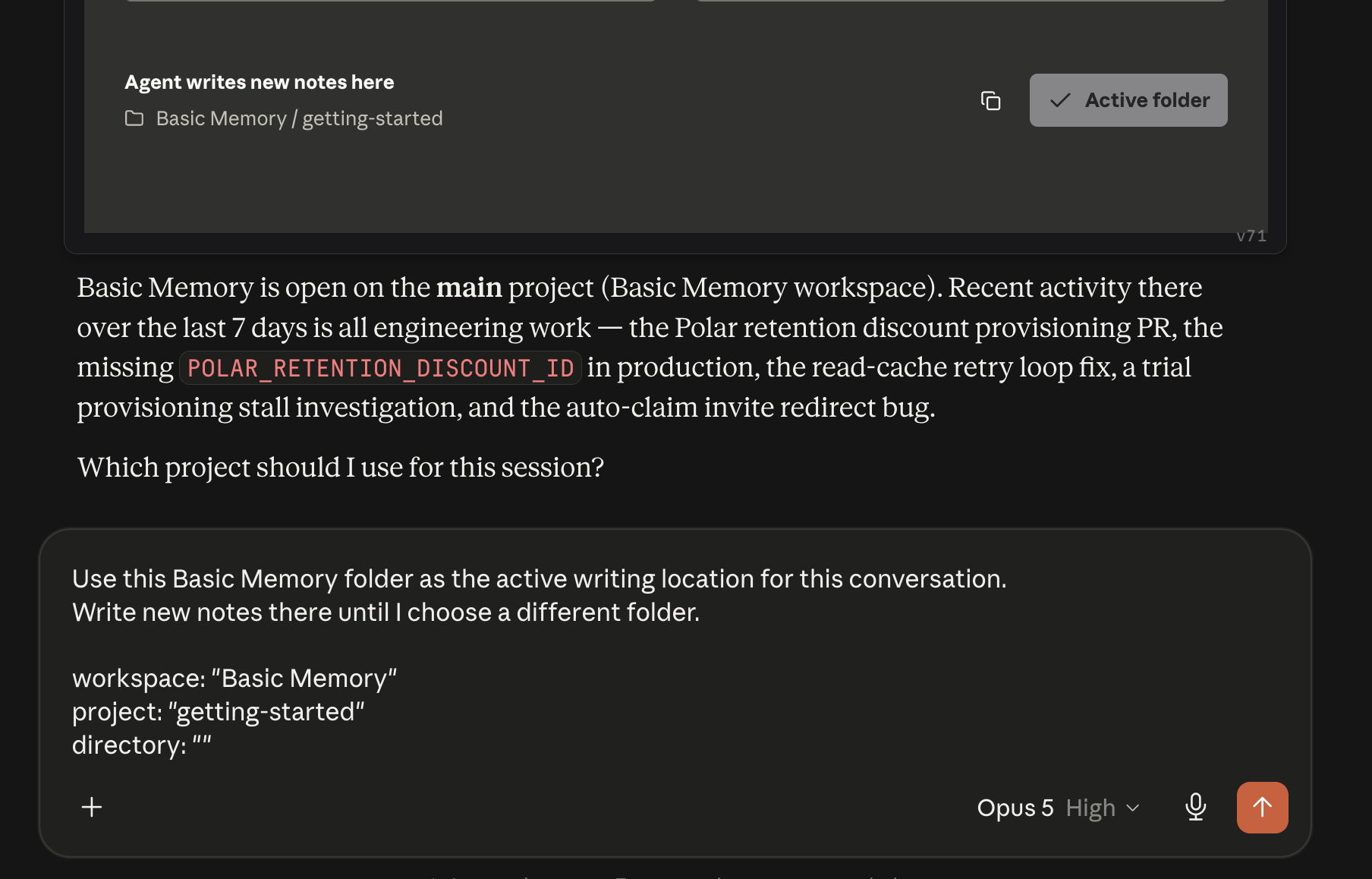
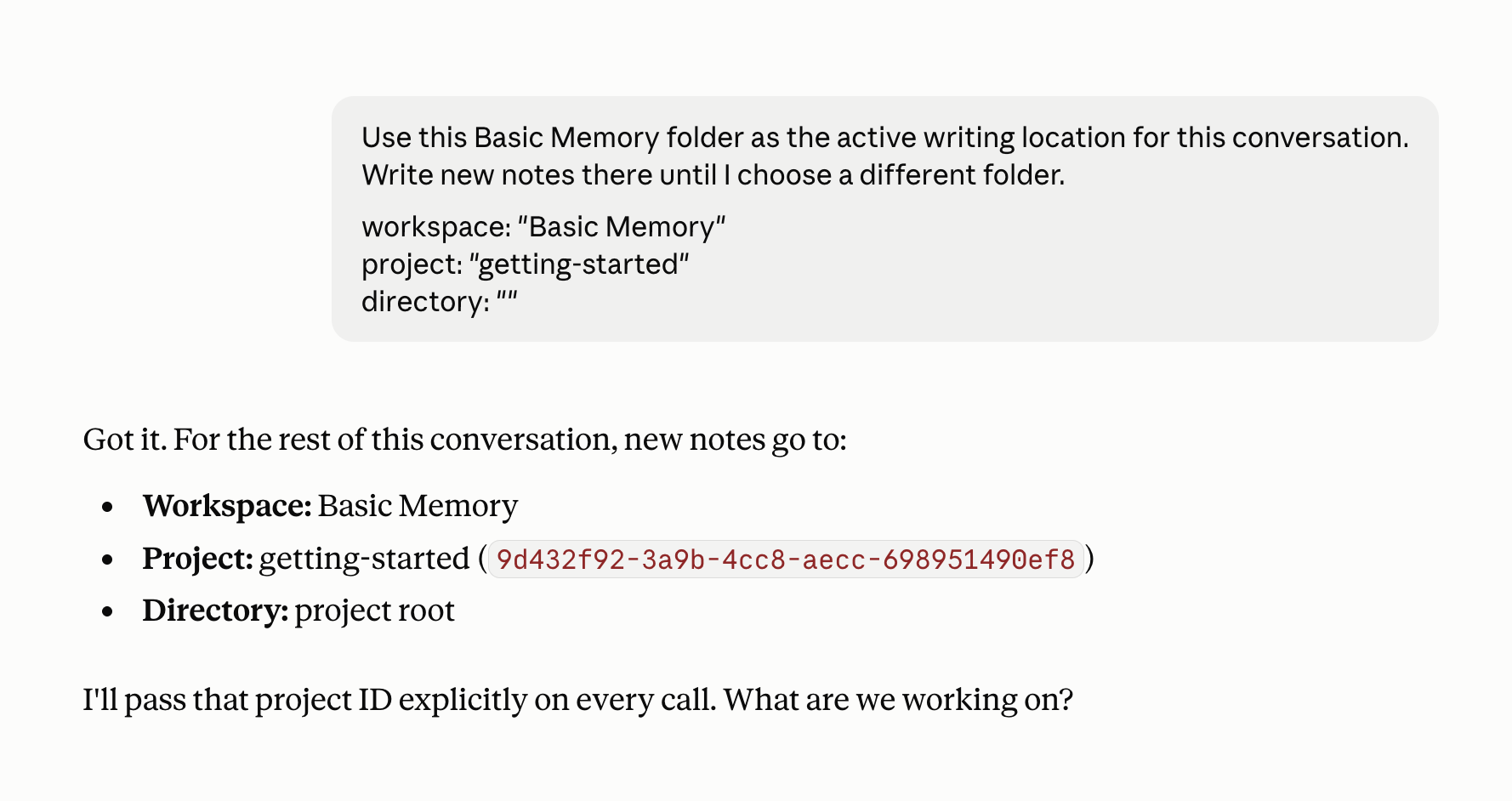
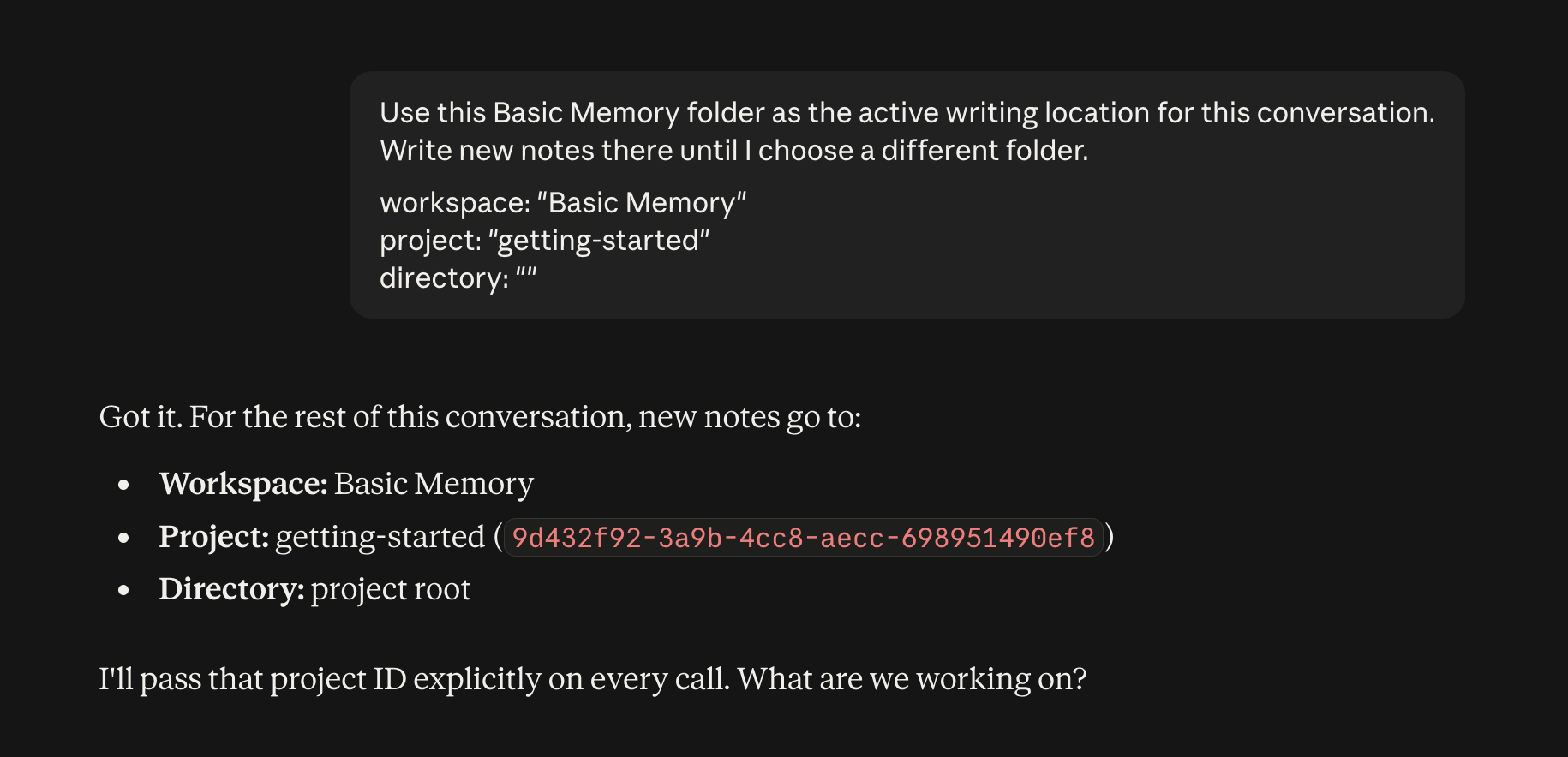
The app sends the location into the conversation and asks the assistant to write new notes there until you choose another folder. The assistant can then keep the workspace, project, and directory attached to later Basic Memory calls instead of asking you to select them again.
Read and reuse a note
Open a note from Notes, Search, a wiki link, or the knowledge graph. The reader renders Basic Memory Markdown, including wiki links, task lists, tables, syntax-highlighted code, Mermaid diagrams, observations, relations, and frontmatter.
From the reader you can:
- Toggle task checkboxes
- Refresh the note or inspect its frontmatter
- See how many review threads remain unresolved
- Copy a note link or open the note in the full web app
- Click the note title to use the note in the conversation
- Switch to Edit without leaving the conversation
Add a note to your prompt
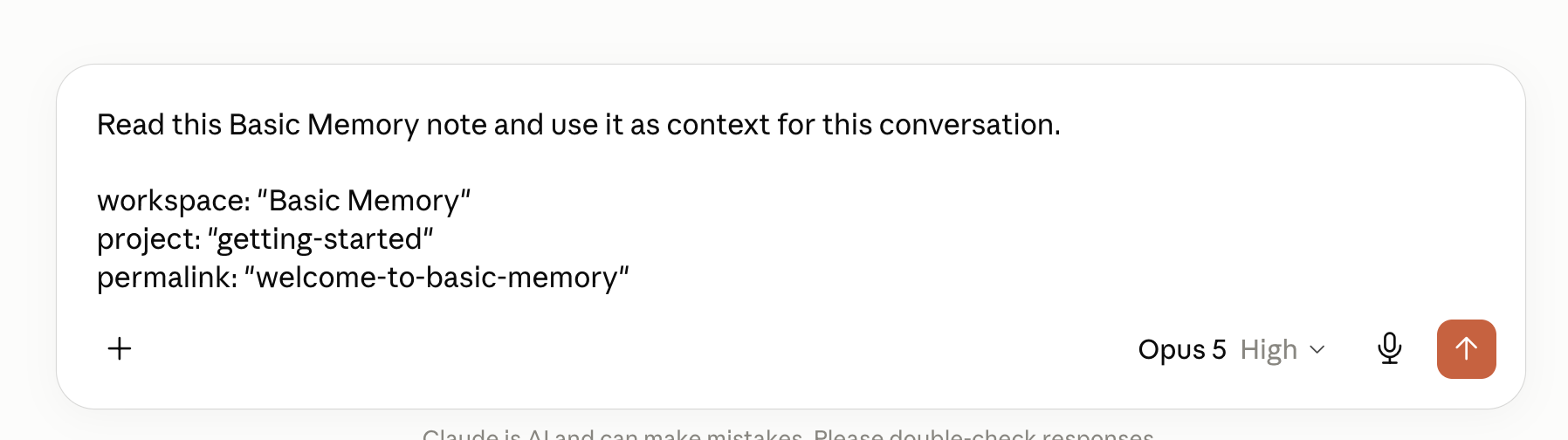
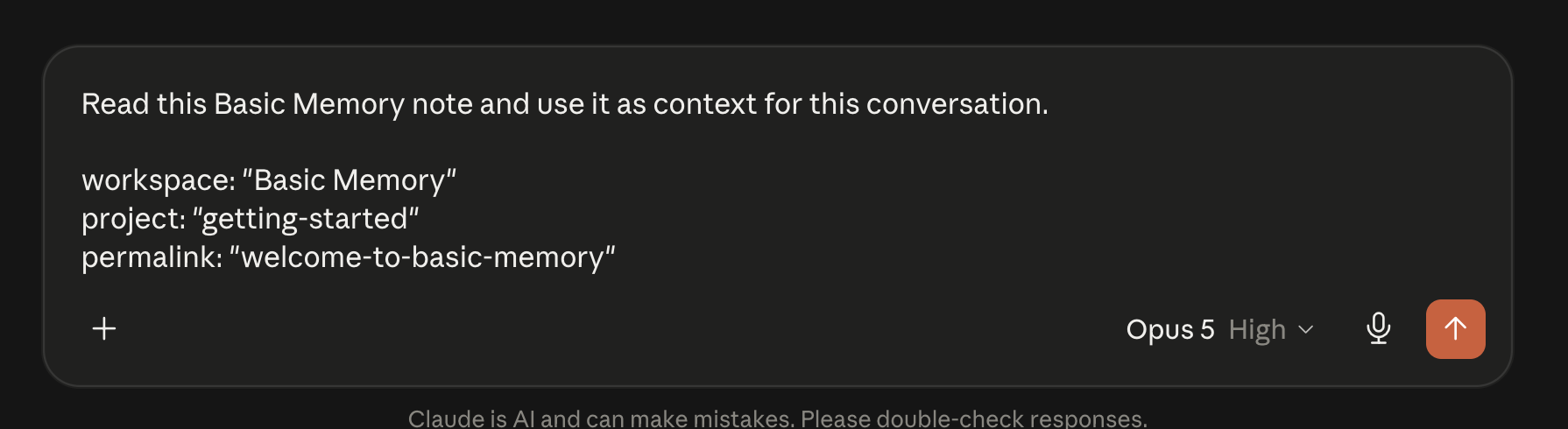
In the Notes gallery, hover over a note card and choose Use note in conversation. The app prepares a prompt that tells the assistant to use that note in the current conversation thread.
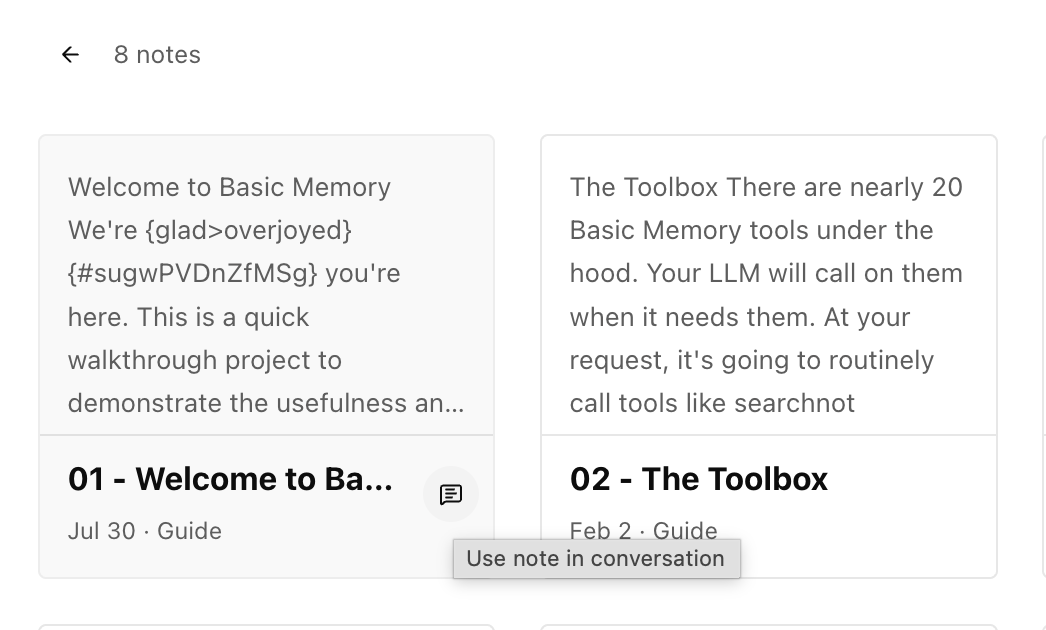
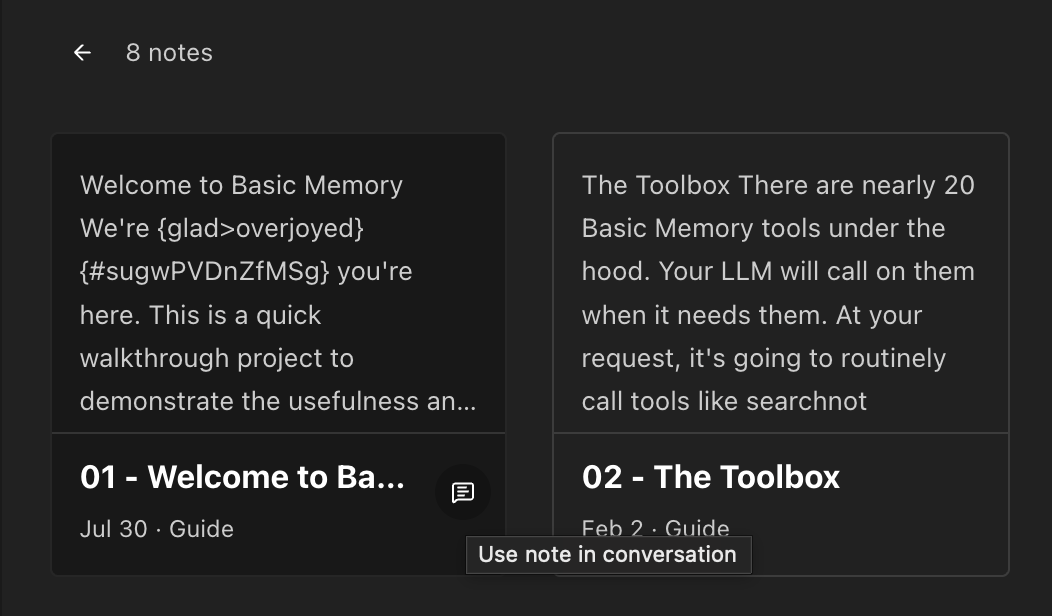
You can also open the note and click its title in the reader to use it in the conversation.


The prompt identifies the note by workspace, project, and permalink, so the assistant can read the right note and use it as context. You can add your question or instructions before sending it.
Search across your notes
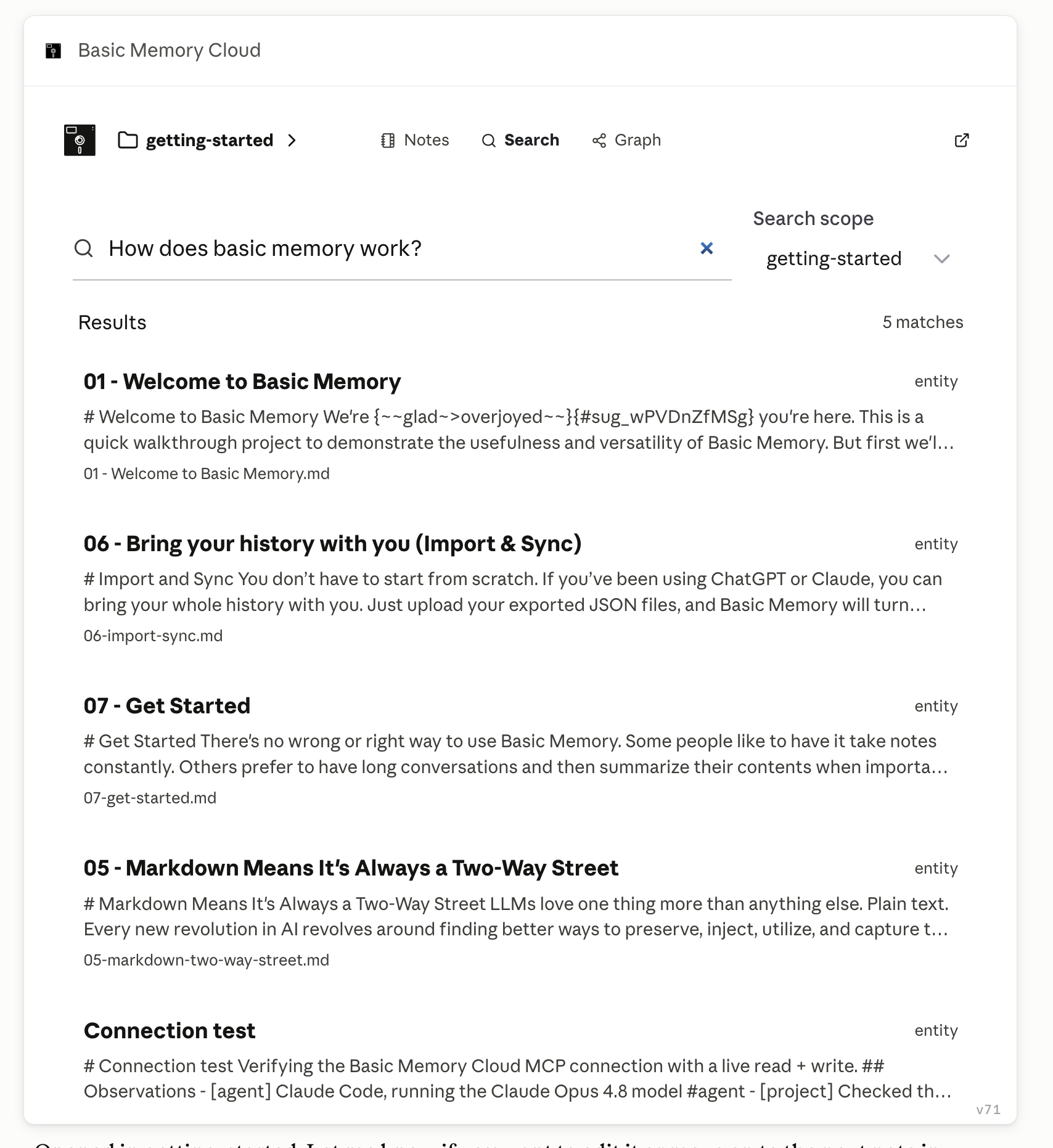
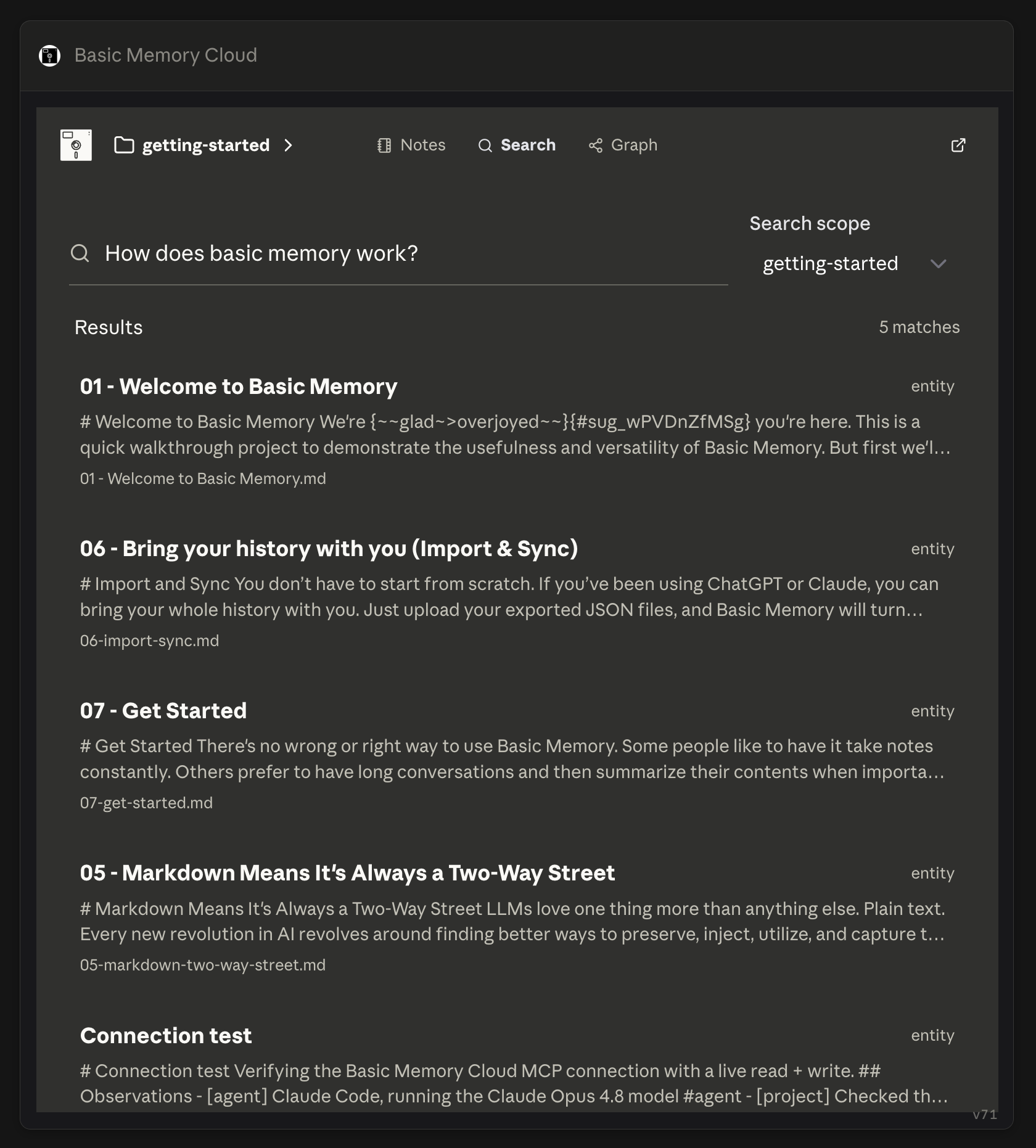
Open Search, enter a query, and choose whether to search the current project or all projects you can access. Results show matching excerpts and their locations; select one to open it in the reader without leaving the app.
Edit and review in place
Choose Edit from the note reader to open the rich editor. It includes headings, lists, task lists, links, tables, undo and redo, and a preview mode. Changes autosave after a short pause, the status changes to Saved, and the app checks for a newer remote revision before overwriting.
The same editor supports shared review markup. You can add attributed comments, suggest insertions, deletions, or replacements, and open any unresolved thread. Suggestions remain inline with the note until someone Accepts or Rejects them; comments can be resolved or deleted without changing the note text.
Notes and search results show pending comment and suggestion counts, so review work is visible before you open the editor. Excerpts remain clean prose and never expose the underlying CriticMarkup storage.
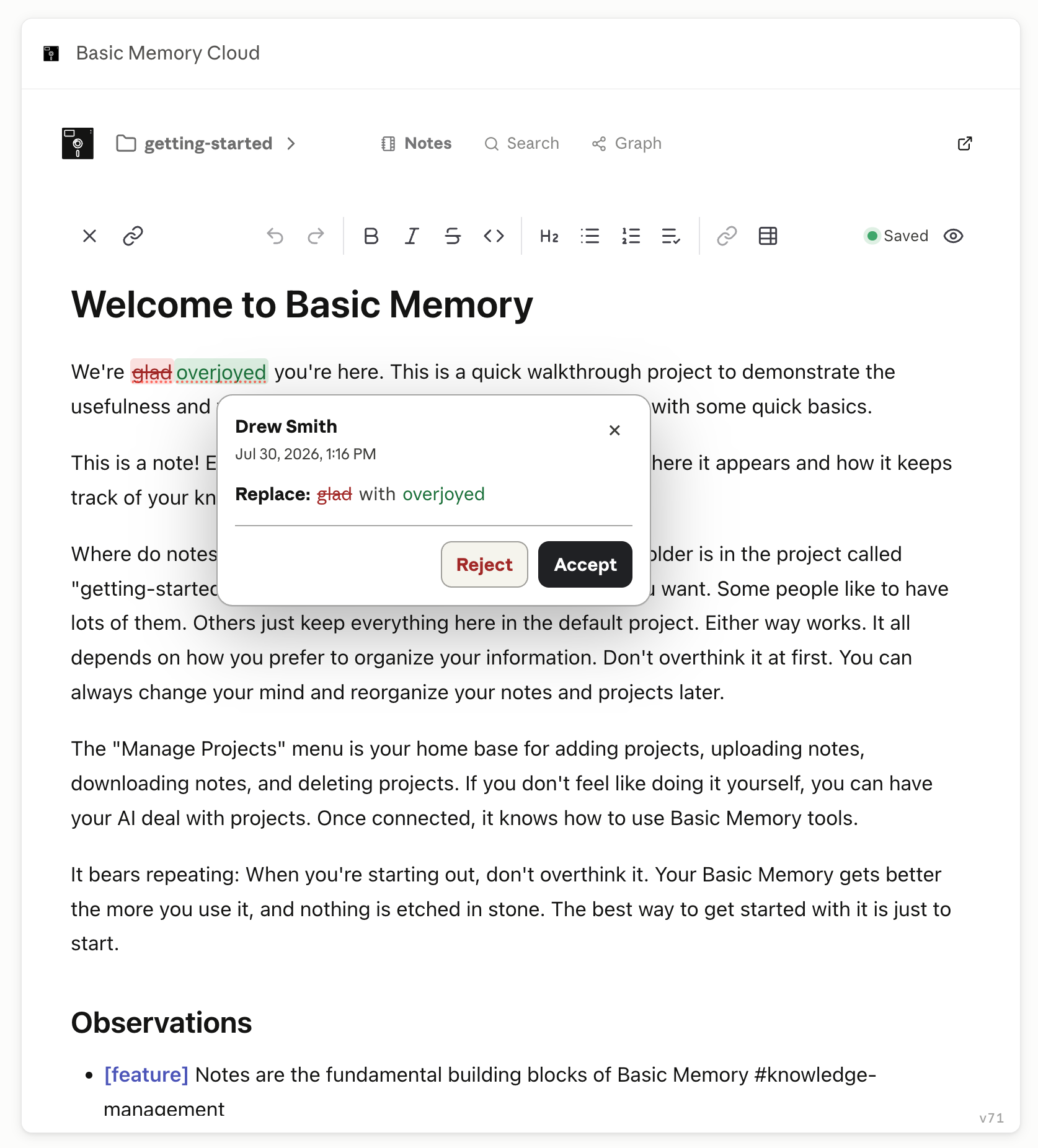
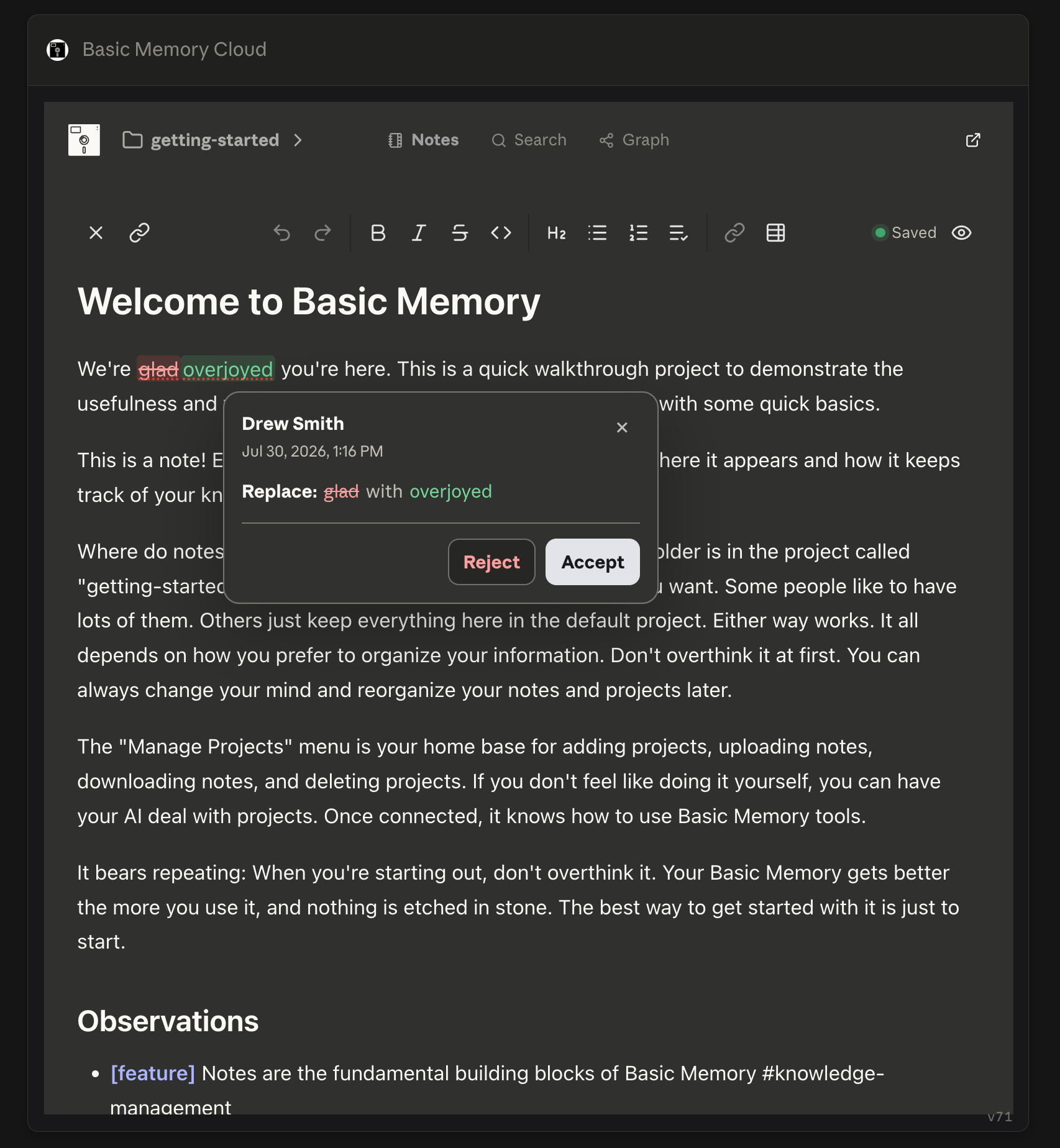
For the full review workflow, see Comments and Suggestions.
Explore the knowledge graph
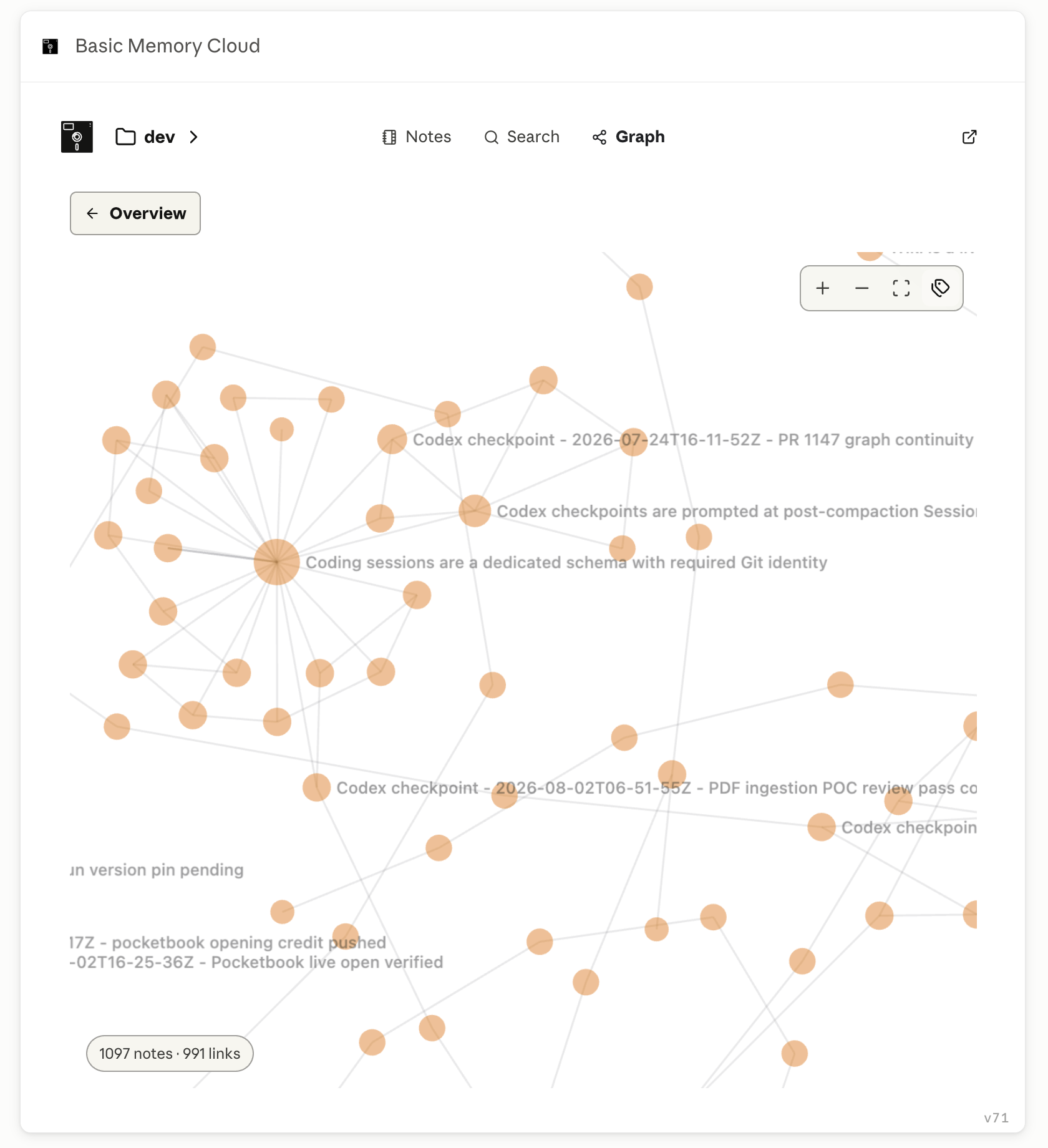
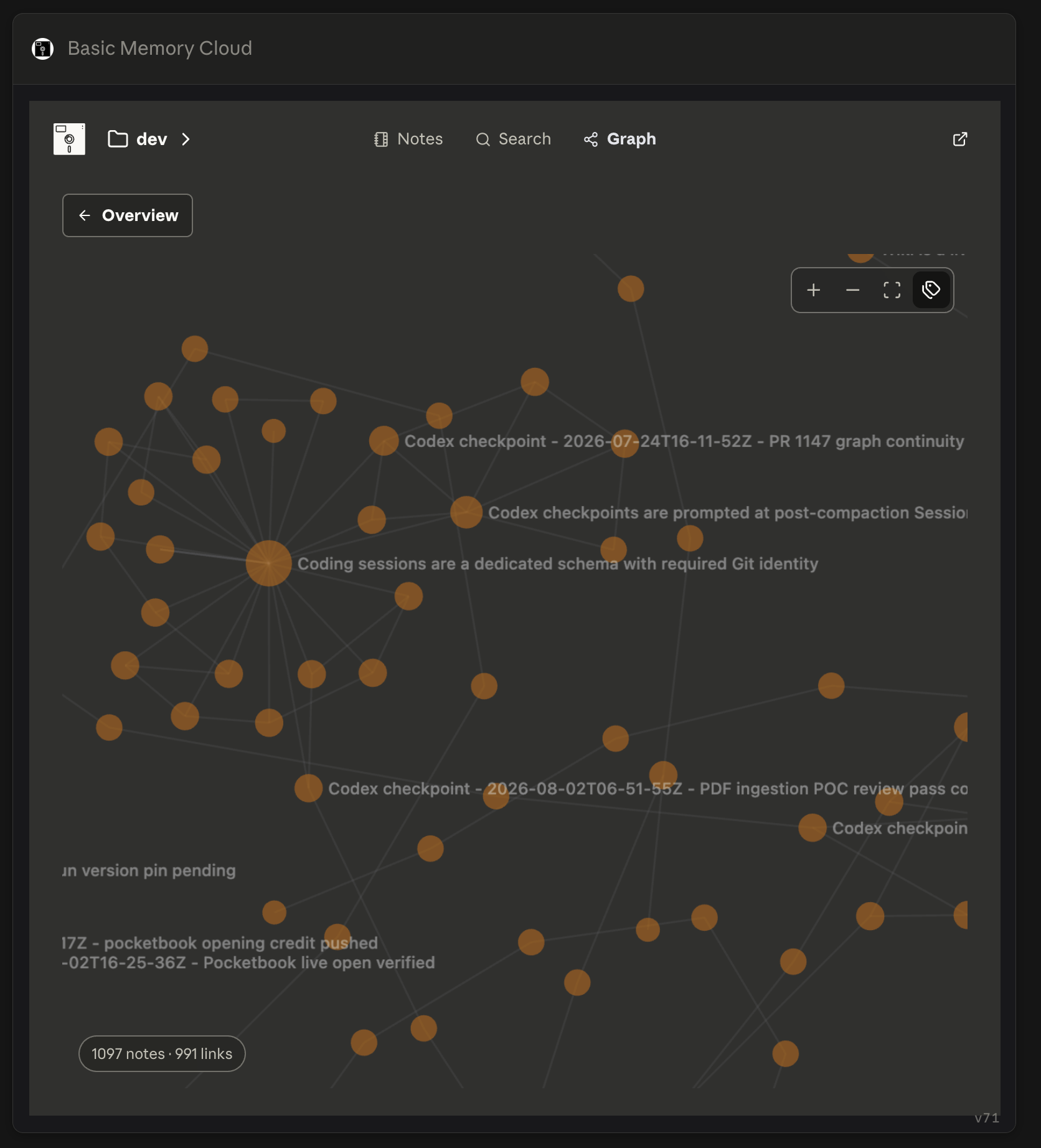
Open Graph for an overview of the current project's notes and relations. Switch to the full graph to explore the complete connected view, select nodes to inspect their details, and follow a note back into the reader. Graph controls let you zoom, fit the graph to the viewport, and toggle labels; Overview returns to the summary.
Choose the app or a data tool
The interactive app is for something you want to see or operate. Normal MCP data tools are for information the assistant needs to reason with.
| Goal | Tool |
|---|---|
| Show an interactive note, folder, search, or graph | open_basic_memory |
| Read note content for an answer or summary | read_note |
| Search for information the assistant will use | search_notes |
| Get a directory listing as data | list_directory |
| Add, reply to, resolve, accept, or reject review work | review_note |
For example, “What did we decide about authentication?” should use search and read tools. “Open my authentication notes so I can browse them” should use the interactive app.